Using the VCF CLI with CCI context to create Native Object Storage
 In a recent post, I demonstrated how you could use the VCF CLI with CCI context to manage VCFA provisioned databases integrated with VMware Data Services Manager. I thought it might be interesting to demonstrate a similar set of steps, but with the objective of creating a Native Object Store. Once again, the VCF Command Line Interface (CLI) would be used, pointing to a VCFA endpoint and using the Cloud Consumption Interface. This would enable us to work in the context of an organization user to make requests. In this post, I will show how to retrieve an API token, login to the CCI context using the VCF CLI, and demonstrate how to create an object store using kubectl command on a YAML manifest which describe the Native Object Store details.
Please note that Native Object Storage is still in tech preview, and is only available to some customers for testing. We hope to make it generally available to all our customers very soon.
Get an API Token
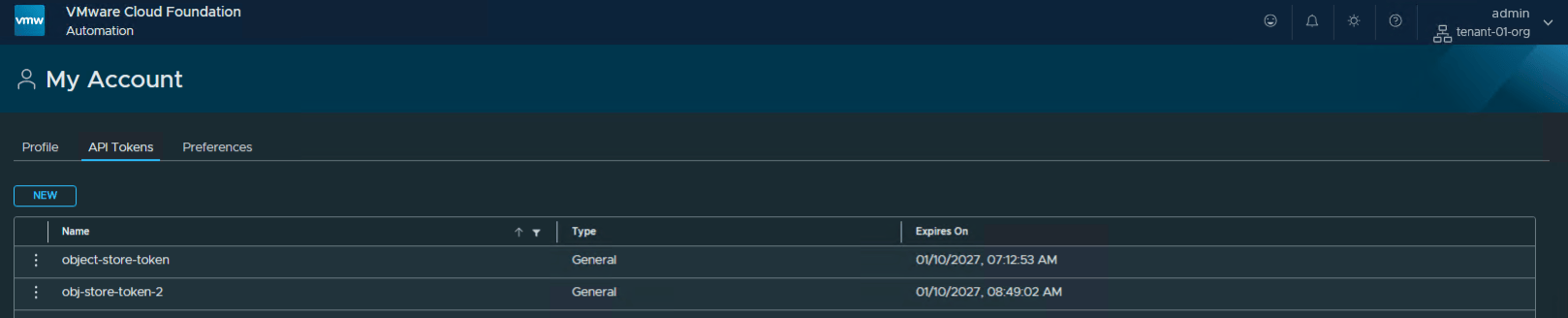
Login to your VCF Automation Organization as a tenant admin. In the top right hand corner, open My Account under the User Settings view. From, there select API Tokens, then click on New to create a new token. Store this token somewhere safe.
Login to the CCI context
With our token retrieve from VCF Automation, we can now login to the Cloud Consumption Interface, switch to the appropriate CCI context and query existing Object Stores using the VCF CLI. As you will see, I already have an existing Object Storage created via the UI.
$ vcf config init
[i] Some initialization of the CLI is required.
[i] Let's set things up for you.  This will just take a few seconds.
[i]
[i] Initialization done!
[i] ==
[ok] successfully initialized the config


$ vcf context create tenant-01-cci-context \
--endpoint https://flt-auto01.rainpole.io --type cci \
--api-token Ifi3Pka7E01oJzyeL3ltbfEqzxbgj5av --insecure-skip-tls-verify
? Provide Tenant Name:  tenant-01-org
Successfully logged into flt-auto01.rainpole.io

You have access to the following contexts:
   tenant-01-cci-context
   tenant-01-cci-context:tenant-01-ns-wmgrf:default-project

If the namespace context you wish to use is not in this list, you may need to
refresh the context again, or contact your cluster administrator.

To change context, use `vcf context use <context_name>`
[ok] successfully saved context: tenant-01-cci-context
[ok] successfully saved context: tenant-01-cci-context:tenant-01-ns-wmgrf:default-project


$ vcf context use tenant-01-cci-context
[ok] Token is still active. Skipped the token refresh for context "tenant-01-cci-context"
[i] Successfully activated context 'tenant-01-cci-context' (Type: cloud-consumption-interface)
[x] : failed to discover plugin sources from the system Harbor registry: unable to retrieve the complete list of server APIs: containerregistry.vmware.com/v1alpha1: no matches for containerregistry.vmware.com/v1alpha1, Resource=


$ kubectl get objectstores
NAME          REGION        VPC                   CAPACITY   PERFORMANCE CLASS   STATUS    AGE
tenant1-oss   cork-region   default-cork-region   1Ti        Small               Healthy   14d
Build a YAML Manifest for an Object Store
We can use the VCF Automation to create a sample Object Storage YAML manifest which can then be applied via the CCI. Login to the VCFA organisation as your organisation admin user, select Build & Deploy, then select Object Storage from the left-hand menu. Now select create a new object store, and populate the UI as normal. On the right-hand side, the Kubernetes Resource YAML for the Object Store is also populated as shown below.
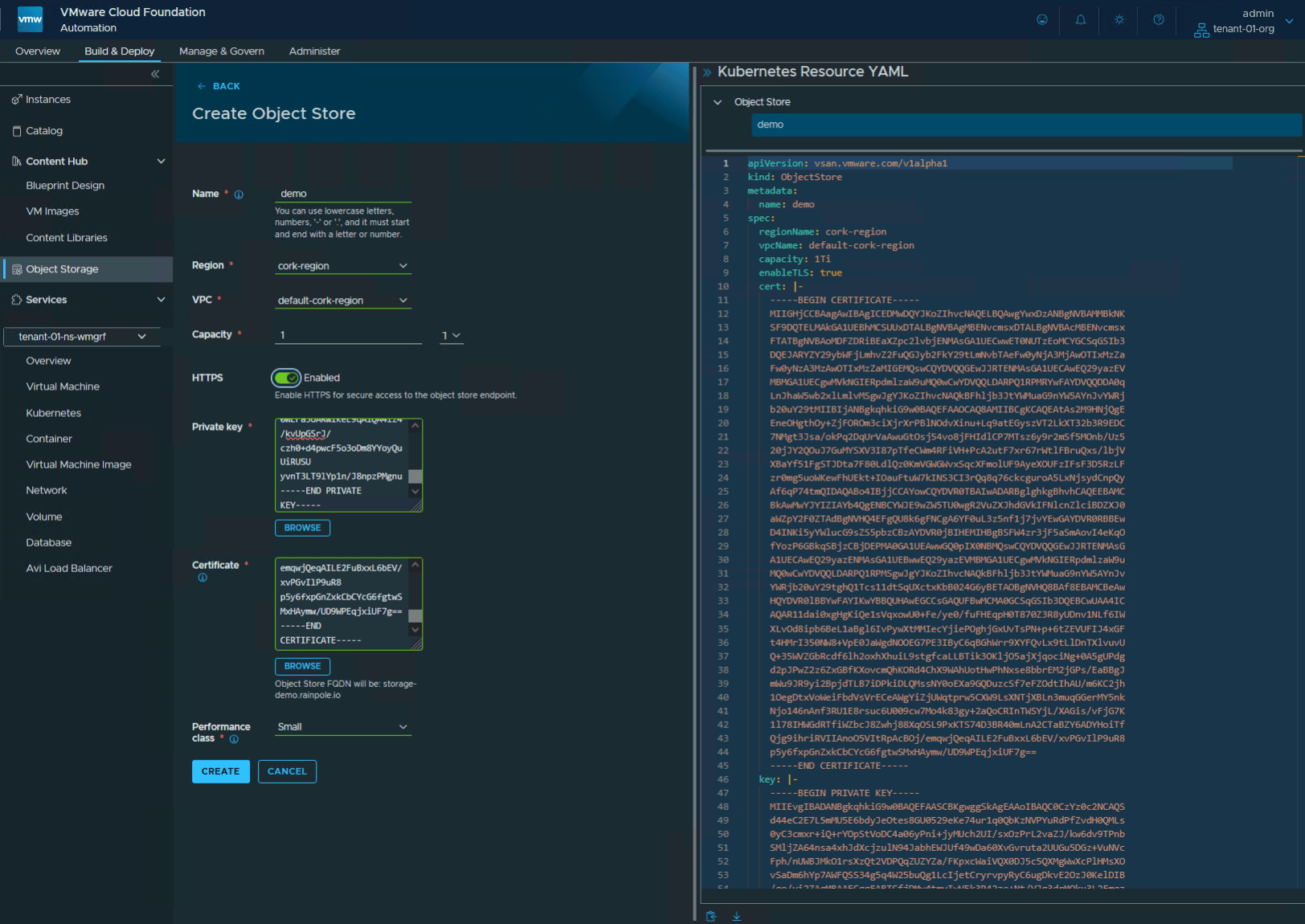
Note that in the UI, the certificate provided must be a wildcard (e.g., *.rainpole.io) to cover the IAM and storage endpoints, as well as the OSE. However, if HTTPS is disabled implying HTTP access only, you can provide a single certificate for the storage endpoint, avoiding the use of wildcard certs. The single certificate must contain 2 Subject Alternate Names (SANs), one for the <object-store-service-name>.<domain> and another for storage-<object-store-name>.<object-store-service-name>.<domain>. The naming convention is very important. Here is an example taken from the openssl.cnf file used in my environment, where the object store name is set to np-test and object store service name is set to nos. This results in the following SANs.
[ alt_names ]
# Subject Alternate Names for server_cert
DNS.1 = nos.rainpole.io
DNS.2 = storage-np-test.nos.rainpole.io
The first entry (nos.rainpole.io) is used as domain name for the object store service. The second entry (storage-np-test.nos.rainpole.io) is used as the access endpoint FQDN for S3 access. Note that enableTLS is set to false in this manifest, so I do not need to provide a wildcard certificate. I only need to provide a valid certificate created with the two SANs mentioned previously for the storage endpoint, and of course, it must also include a private key. You can check the SAN entries are in the certificate by using the following openssl command:
% openssl x509 -in certs/ose-np-test.cert.pem -noout -text
Certificate:
    Data:
        Version: 3 (0x2)
        Serial Number: 4157 (0x103d)
        Signature Algorithm: sha256WithRSAEncryption
        Issuer: CN=CJH_CA, C=IE, ST=Cork, L=Cork, O=VCF Division, OU=OCTO, emailAddress=cormac.hogan@broadcom.com
        Validity
            Not Before: Oct 14 07:09:15 2026 GMT
            Not After : Oct 24 07:09:15 2027 GMT
        Subject: C=IE, ST=Cork, O=VCF Division, OU=OCTO, CN=storage-np-test.nos.rainpole.io, emailAddress=cormac.hogan@broadcom.com
        <<--snip-->>
                OpenSSL Generated Server Certificate
            X509v3 Subject Key Identifier:
                F2:4E:A0:14:D0:A0:03:A6:05:D2:E2:F7:CF:99:DF:D6:3E:E3:BD:81
            X509v3 Subject Alternative Name:
                DNS:nos.rainpole.io, DNS:storage-np-test.nos.rainpole.io
            X509v3 Authority Key Identifier:
                keyid:85:5B:8C:EB:DE:31:79:69:29:80:A2:F2:38:78:AA:8E:7D:8A:33:3F
Here is an example of a YAML manifest, with the certificate and key entries truncated:
apiVersion: vsan.vmware.com/v1alpha1
kind: ObjectStore
metadata:
  name: np-test
spec:
  capacity: 100Gi
  cert: |
    -----BEGIN CERTIFICATE-----
    MIIGVzCCBD+gAwIBAgICEDwwDQYJKoZIhvcNAQELBQAwgYwxDzANBgNVBAMMBkNK
    ---<SNIP>---
    eNOCCp4u9pkp1Tp02lspRXCY8Qo8H/gX/I0PT/ic4j5kXOBcS81zy7C38w==
    -----END CERTIFICATE-----
  enableTLS: false
  key: |-
    -----BEGIN PRIVATE KEY-----
    MIIEvgIBADANBgkqhkiG9w0BAQEFAASCBKgwggSkAgEAAoIBAQC0CzYz0c2NCAQS
    ---<SNIP>---
    yvnT3LT9lYp1n/J8npzPMgnu
    -----END PRIVATE KEY-----
  performanceClass: Small
  regionID: urn:vcloud:region:c86a2585-26a5-41cd-9ef5-c90887a6d637
  regionName: cork-region
  vpcName: default-cork-region
If you need to retrieve the list of regions and their regionID, you can get it by running the following commands:
$ kubectl get regions
NAME
cork-region
$ kubectl get regions cork-region -o yaml
apiVersion: topology.cci.vmware.com/v1alpha2
kind: Region
metadata:
  annotations: {}
  finalizers: []
  labels: {}
  name: cork-region
  ownerReferences: []
  uid: c86a2585-26a5-41cd-9ef5-c90887a6d637
spec:
  description: ""
status:
  loadBalancerType: NSX_REGISTERED_AVI
Similarly, if you need to retrieve the name of the VPC, you can run the following:
$ kubectl get vpcs
NAME                  REGION        PRIVATE IPS     PROJECT   STATUS     AGE
default-cork-region   cork-region   172.30.0.0/16   <none>    Realized   36d
You now have everything you need to deploy a Native Object Storage from the API.
Apply the manifest, monitor the Object Storage creation
Now apply theYAML manifest created in the previous step. After applying the manifest, check the state of the object store. Note that in the example below, np-test is my new object store, whereas “tenant1-oss” is one that I previously created via the VCFA UI. Monitor the object stores from the CLI. It will change states from Init -> Deploying -> Degraded -> Healthy over the course of a few minutes.
$ kubectl apply -f tenant1-oss-np-test.yaml
objectstore.vsan.vmware.com/np-test created

$ kubectl get objectstores
NAME          REGION        VPC                   CAPACITY   PERFORMANCE CLASS   STATUS    AGE
np-test       cork-region   default-cork-region   100Gi      Small               Init      60s
tenant1-oss   cork-region   default-cork-region   1Ti        Small               Healthy   14d

$ kubectl get objectstores
NAME          REGION        VPC                   CAPACITY   PERFORMANCE CLASS   STATUS      AGE
np-test       cork-region   default-cork-region   100Gi      Small               Deploying   96s
tenant1-oss   cork-region   default-cork-region   1Ti        Small               Healthy     14d

$ kubectl get objectstores
NAME          REGION        VPC                   CAPACITY   PERFORMANCE CLASS   STATUS     AGE
np-test       cork-region   default-cork-region   100Gi      Small               Degraded   4m10s
tenant1-oss   cork-region   default-cork-region   1Ti        Small               Healthy    14d

$ kubectl get objectstores
NAME          REGION        VPC                   CAPACITY   PERFORMANCE CLASS   STATUS    AGE
np-test       cork-region   default-cork-region   100Gi      Small               Healthy   6m22s
tenant1-oss   cork-region   default-cork-region   1Ti        Small               Healthy   14d
You can monitor the creation of the PodsVMs which back the object store via the vSphere Client. Navigate to the namespace which is created on behalf of the object store (it will have the name of the object store), select the Compute view and monitor as the PodVMs start up. Here is an example from my lab.

Check the VCFA UI, tenant-01-org organization, and under Build & Deploy > Object Storage, your new object store should be visible. As per the CLI output previously, it should go through various states before eventually becoming Healthy.
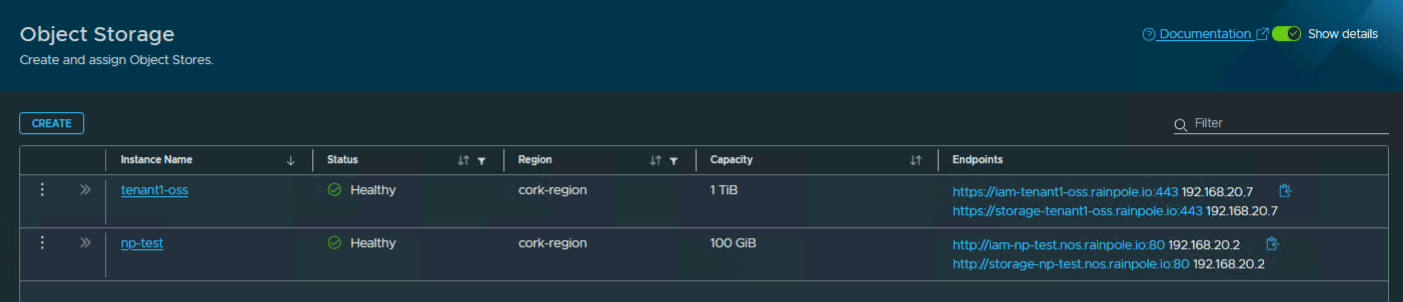
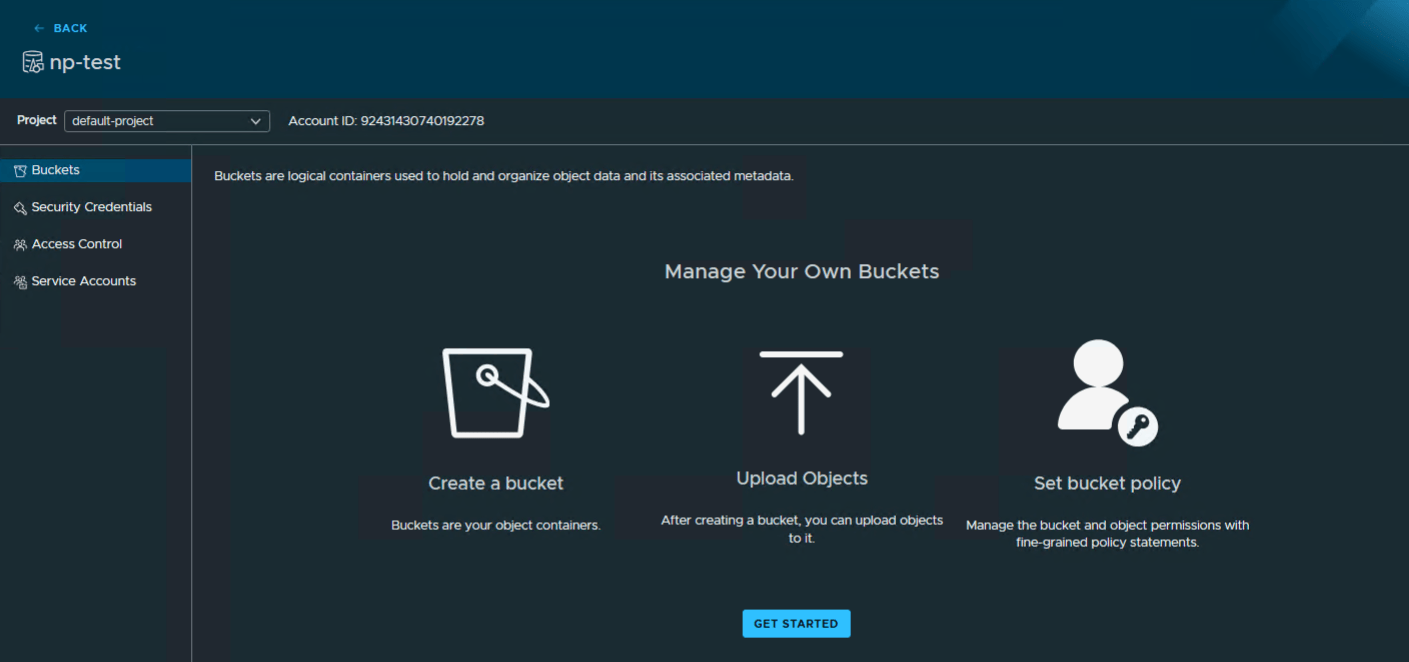
The Object Store has been successfully deployed via the VCF CLI Cloud Consumption Interface. Note that the connections are now http rather than https, but that we were able to create this object store without the use of a wildcard certificate. Both the storage and the IAM are visible in the VCFA UI view of the object store. We can now drill down into the object store (as an org admin user) and create buckets, user credentials and bucket policies on our object store.
Summary
Object Storage is available via the VCF Automation Cloud Consumption Interface (CCI). Customers can manage Native Object Stores via the Kubernetes kubectl command line tool once a context is created. Even better, there is an option to avoid the use of wildcards in certificates for customers who are not in a position to use them in VCF 9.1.1 tech preview. The plan is to address this fully through both API and UI in time for GA.
