A first look at Native Object Storage in VCF 9.1.1
 Many readers may have read this blog article on Native Object Storage from my good pal, Pete Koehler. In that post, which was published back in May of this year and coincided with the VMware Cloud Foundation (VCF) version 9.1 release, Pete talked about a tech preview of Native Object Storage. Well, with the release of VCF 9.1.1, the tech preview has now begun. Although the tech preview of Native Object Storage is not open to everybody, we will be working with a select set of customers and gathering critical feedback. Our objective is to have a robust Native Object Storage platform when it does become generally available to all our customers. For customers who may not be part of the tech preview, this post should give you an appreciation of how we have integrated Object Storage into VCF.
In this post, I wanted to share some of the setup and initial configuration steps so that you can see what’s involved. I’ll show you how a Provider Admin enables Object Storage on their VCF Private Cloud. Next, we will see how either the Provider Admin or the Org Admin creates the Object Stores. Finally, I’ll take you to the point where tenant users in a VCF Automation organization can begin to provision their own S3 compatible buckets. In a future post, we’ll look at how a Project Admin can configure access control to the object storage buckets for different project users and assign different levels of privileges to the different project users.
Be aware that by the time the service is generally available, the screenshots shown here may have changed. This post is simply to provide an overview, in the knowledge that the steps may be different in future releases.
Prep vCenter and ESXi
For the tech preview, you will need to enable some advanced options on both ESXi and vCenter to enable Object Storage. You won’t need this step when Native Object Storage is generally available, but for the tech preview, you will need to enable these settings manually.
1. ESXi – set /VSAN/VsanVBOSSEnabled to 1
[root@sfo01-w01-r01-esx01:~] esxcfg-advcfg -g /VSAN/VsanVBOSSEnabled
Value of VsanVBOSSEnabled is 0
[root@sfo01-w01-r01-esx01:~] esxcfg-advcfg -s 1 /VSAN/VsanVBOSSEnabled
Value of VsanVBOSSEnabled is 1
2. ESXi – restart vsanmgmtd
[root@sfo01-w01-r01-esx01:~] /etc/init.d/vsanmgmtd restart
Terminating vsanperfsvc with PID 2561654
vsanperfsvc stopped.
vsanperfsvc started.
[root@sfo01-w01-r01-esx01:~] /etc/init.d/vsanmgmtd status
vsanperfsvc is running
[root@sfo01-w01-r01-esx01:~]
3. vCenter – enable Advanced Setting config.vpxd.vsan.vboss.enabled

4. vCenter – restart vsan-health
root@sfo-w01-vc01 [ ~ ]# vmon-cli -r vsan-health
Completed Restart service request.
Download & Install Native Object Store Package
Tech preview customers will be provided with a run-book to step through how to download the necessary Native Object Storage package. You will need a Linux jump host. Once downloaded, the components need to be pushed up to VCF Automation VMSP Platform. Once that step is completed, tech preview customers can proceed with the installation of the Native Object Storage Service.
Note, however, that you will first need to create a Region object in VCF Automation. Native Object Storage is scoped at a region level, and one or more regions need to be selected when Native Object Storage is installed. The following section has some more specifics on Region settings.
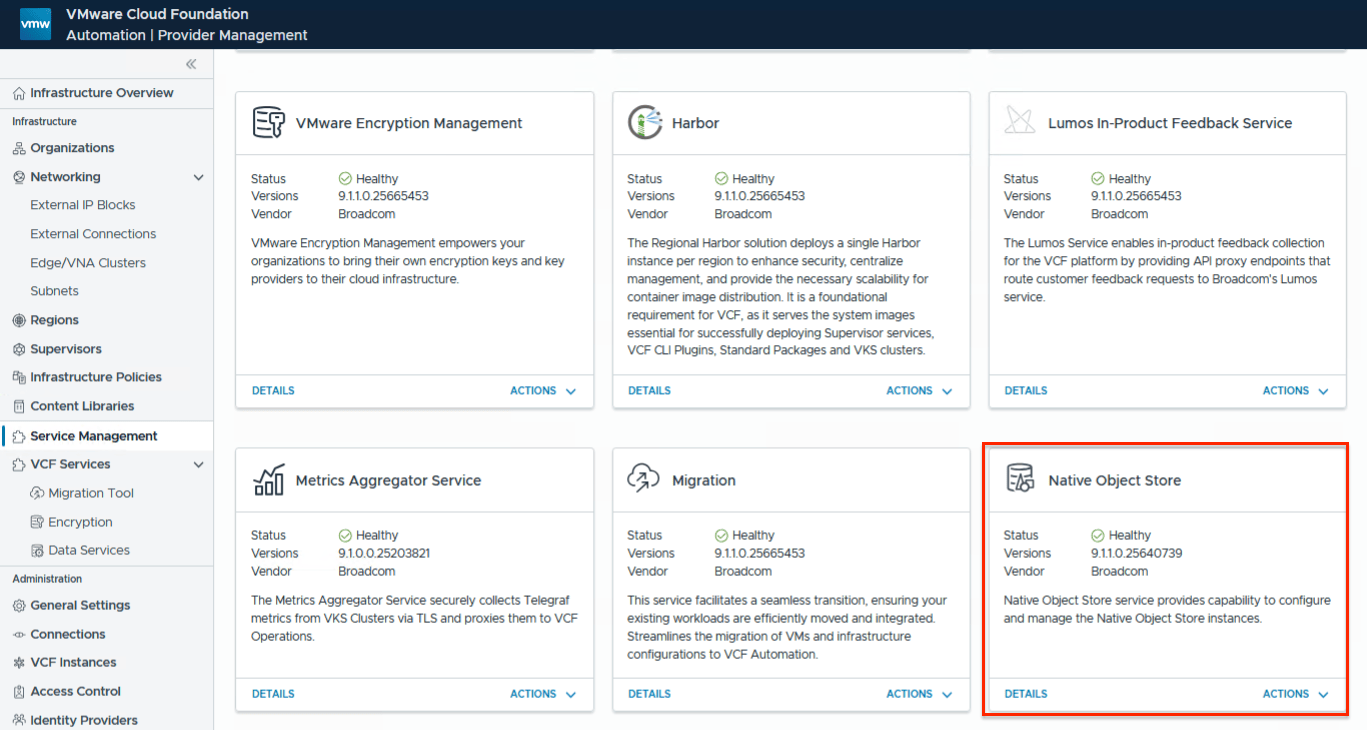
To proceed with the installation, the VCFA Provider Admin used a new Native Object Store tile found under Services Management, as shown below. However, this tile is hidden in VCF 9.1.1 and only those customers participating in the tech preview will be provided with the steps to make it visible. Once the backend components for Object Storage are added to VCF, the VCF Automation Service Management tile for Native Object Storage can be used to do the registration and installation of the service at the Supervisor level.
With Native Object Storage installed, a new supervisor namespace called ‘svc-objectstore-xxx’ is created. In this namespace, the Native Object Storage operator is deployed, watching for requests from different VCFA organisations to build object stores.
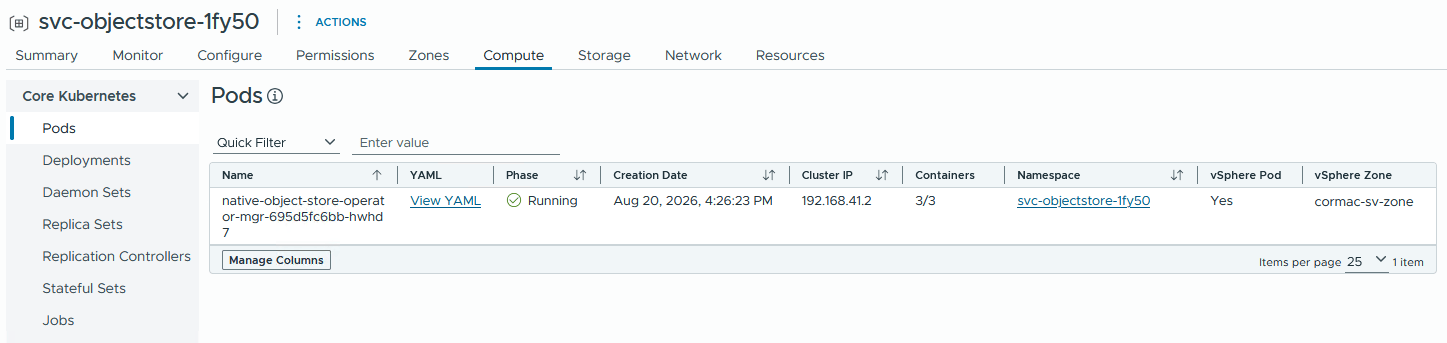
The operator has two network services associated with it, compatibility-api and controller manager.

Once the install is complete, we can proceed with getting it ready for the tenant organizations.
VCFA Region Settings
I mentioned previously that Native Object Storage is scoped at the region level. Thus, at least one region must exist before starting the installation. The region is comprised of one or more Supervisors, backed by one or more vSphere clusters. There must be a vSAN cluster on at least one of the vSphere clusters to enable Native Object Storage. The main item to ensure is selected in the region settings is the vSAN Object Store Policy in the Storage Class settings. This is the storage class which is used to create object store volumes on vSAN, both for the metadata and for the data.

Note that there is no capability to choose which organization gets access to object storage in the 9.1.1 tech preview. If an organization is using a region quota from a region which is scoped to use the Native Object Storage, then that organization has the ability to create an object store.
Also note that if your region is a multi-zone, for example, the Supervisor is backed by multiple vSphere/vSAN clusters, the object store will only provision to the cluster placed in the first zone in the list. Tech Preview does not allow the provisioning of object storages across multiple zones.
VCFA Organization Settings
Once we have confirmed that the region does indeed include the vSAN Object Store Policy, we can proceed with the creation of the organizations. The organization region quota includes the vSAN Object Storage Policy.

There will probably be many questions about networking when it comes to Native Object Storage. Whilst different configuration are possible, I am going to keep the Object Store and the tenant on the same VPC. When creating this organization, I am selecting a network configuration whereby a number of default configuration items are automatically implemented, including VPC, Transit Gateway (TGW), SNAT and connectivity profile. I will continue to use this default VPC when creating the Object Store, as we will see later.

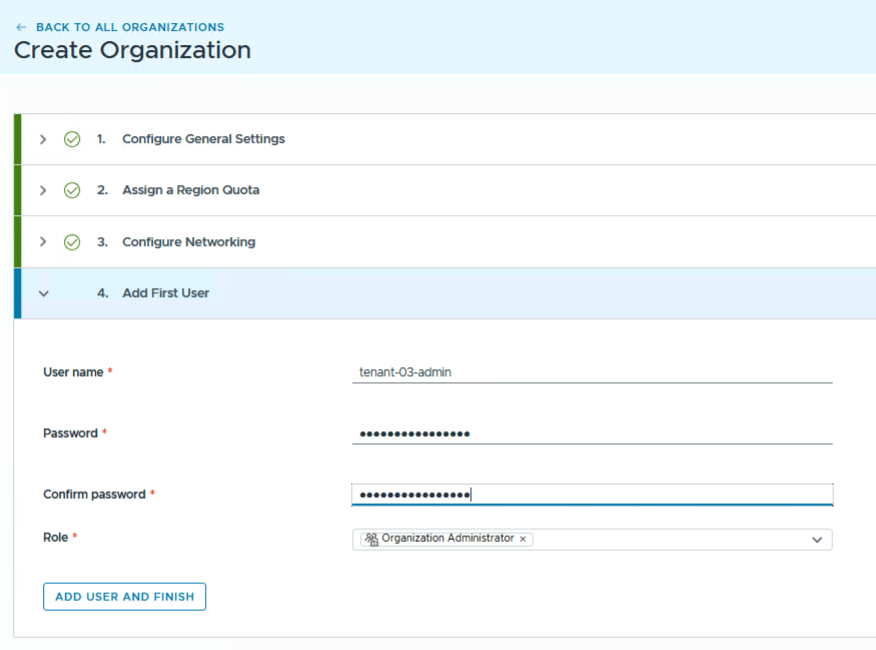
The final step in the Organization setup is to create a first user. In my case I am creating a first user who has the privileges of an Organisation Administrator. We will use this user later when we log onto the organisation we created.
When the Organisation is created, we can launch the Organisation portal directly from the Provider / System organization, automatically connecting to it as the Provider Admin. This approach does have some restrictions. In particular, whilst it should be possible for a Provider Admin to create Object Stores on behalf of organisation users, the Provider Admin should not be able to have access to buckets or bucket contents on the object store.
Create Object Store
As the Provider Admin in the tenant Organisation, I can select the Build & Deploy tab, and observe that there is now an Object Storage menu item on the left hand side. Click this should take me to the option of creating an object store, as shown below.
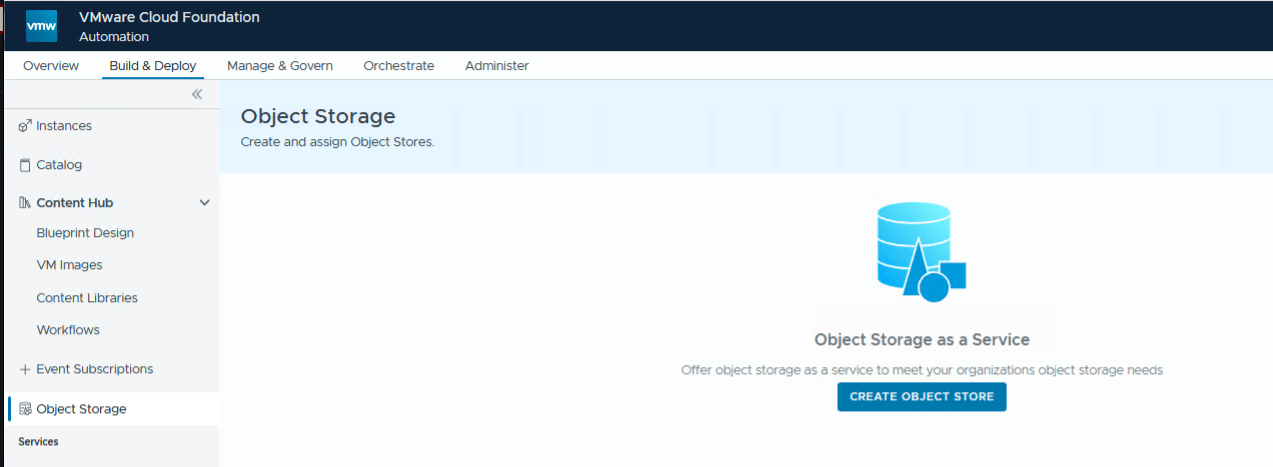
Let’s look at the information that must be provided when building an object store. Obviously, give the object store a name and select which region it is to be placed. The region quote from this region, which includes the vSAN Object Storage class will be used to place the volumes for the object store. You must select a VPC. In this case, it is the default VPC for the organisation but it could be a completely different VPC if you wish. The VPC must exist before you start the object store create process; it is not possible to create a new VPC in this workflow like we have with namespace creation. Set the size of the object store (100Gb minimum), and decide if you want to enable secure HTTPS access or not to the endpoints. If you do want secure access (recommended), you will need to provide a wildcard certificate (e.g., *.rainpole.io) and a private key to enable secure access on the object store endpoints (IAM and storage). Lastly, select a performance class (resources) for the object store.

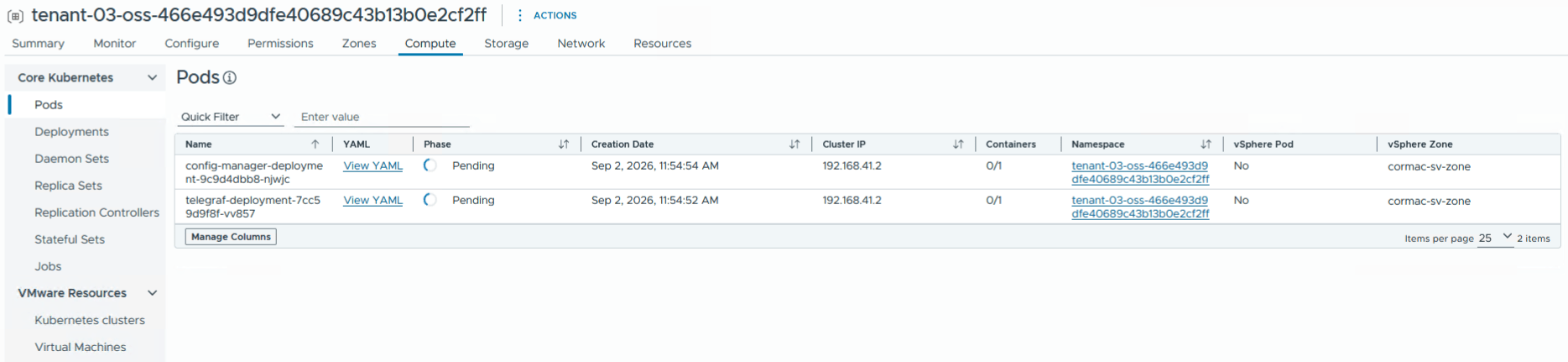
This will initiate the creation of a new Supervisor namespace for the object store, based on the name of the object store. Initially you should observe the ‘telegraf’ and the ‘config manager’ vSphere pods starting up.
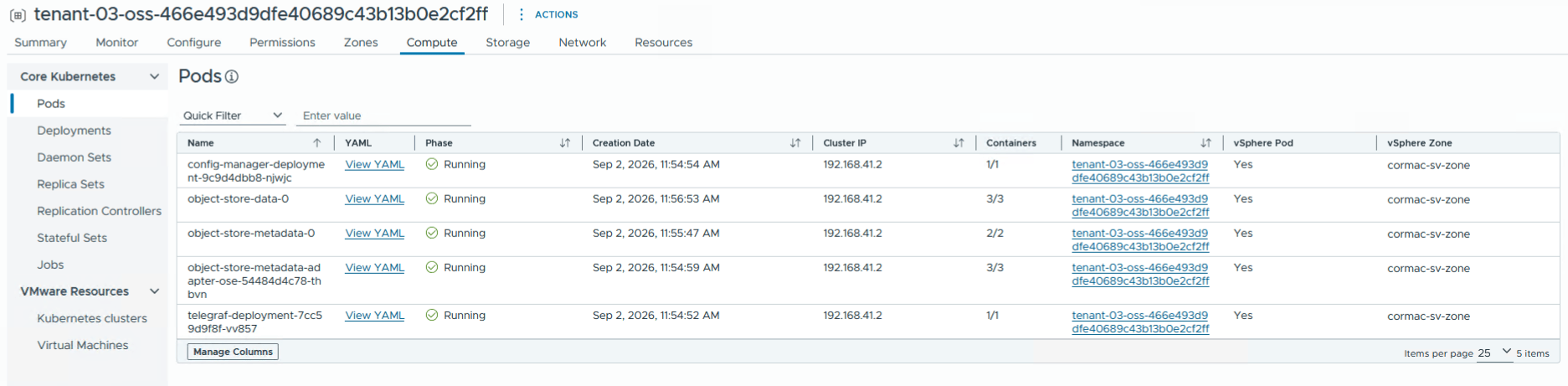
After a few moments, this should expand to 5 vSphere pods, and all should enter a running state if no issues are encountered.
A number of network services and endpoints for the object store should also be created in the namespace:
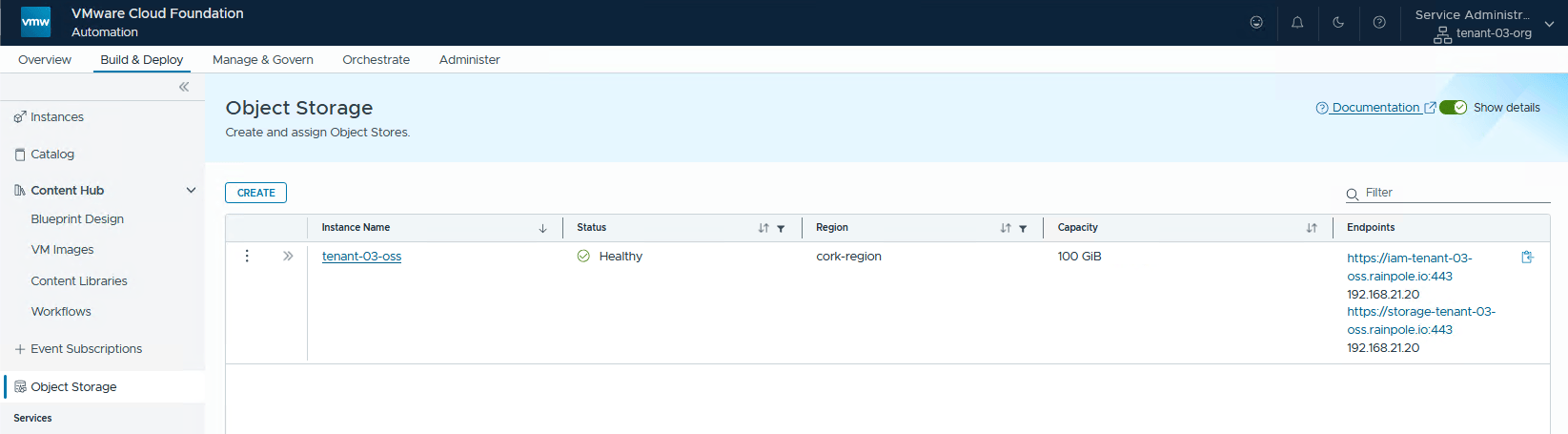
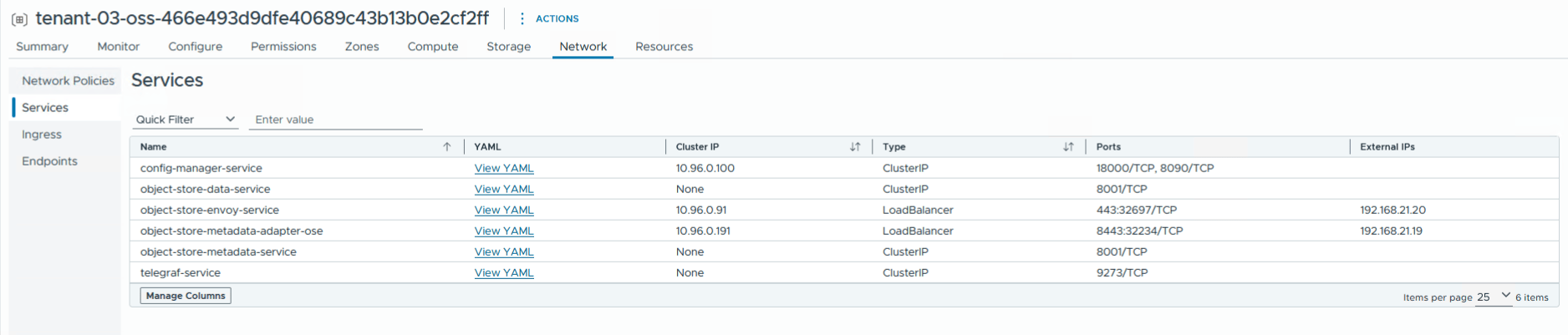 Checking back in VCFA, we should see the object store come online and healthy. Note that the IAM (Identity and Access Management) and storage endpoints should correlate to the LoadBalancer IP address of the Envoy service in the namespace network services view above. You should ensure that the object storage FQDN resolves to that IP address in your DNS.
As you are still connected to the organization as the Provider Admin, you can try to connect to the Object Store. You may need to accept the certificates depending on how they were created, and if your browser trusts the Certificate Authority used to build them.
 But even after doing so, you should observe that your Provider Admin is not allowed to see any details regarding how the organization is using the object store. The Provider Admin cannot see any buckets or bucket contents, nor can they see Access Control info or any service accounts. This is by design. Let’s now try this step as an Org Admin.
Access Object Store as Org Admin
Log out as the Provider Admin, change organizations to the tenant organisation where the object store is created and login as the Org Admin using the first user credentials created when the Org was created.

Now when we connect, we can see the initial credentials pop up after accepting the certificates. This looks better than previous when we tried to use the Provider Admin to access the object store.

And finally we are in a position to create buckets and manage access control and additional security credentials to said buckets. In a future post, I will go into more detail regarding access controls, and what access different roles within a project have when it comes to object storage.

Summary
That completes the post. I hope it has given you an idea of how we have architected Native Object Storage, using vSAN, into VCF version 9.1.1. I will be following up with some additional post to go deeper into some of the aspects here, notably how to control who has access to the buckets from within an organisation. We will also look into some CLI (since Native Object Storage supports the standard S3 API, we can do lots of cool things via tools such as the aws cli, for example). Thanks for reading this far. I am sure you will agree that this is a very interesting feature in VCF 9.1.1.

It´s a new cool feautre