Bucket Policies in VCFA 9.1.1 for Native Object Storage
 In an earlier post on object storage, we look at the role privieges that VCF Automation users could be assigned within an organization. Since the scope of object storage privileges is at the project level, we also looked at the role of Project Admins and Project Advanced Users. within a project. We saw how a Project Admin could grant access control to different Project Users, creating access control policies to control which s3 actions and which s3 resource that a user was allowed in a given project. In this post, I wanted to take this a little further. As mentioned, the scope of a user’s privileges is the project. But suppose I had a user who was in two different projects in the same organisation. And I wanted this user to be able to copy contents between their buckets that are in the different projects. By default, this is not allowed. But it is possible to construct a bucket policy that will allow the user to copy between those different project buckets. Let’s see how to do that in this post.
Let’s use an LDAP user. In this case, my LDAP user is called tenant01. At the organisation level, this user is an org user with object store privileges. At the project level, this user has been given the role of Project Administrator in two projects in my organisation. The projects are called default-project and shared-project. This user also has a bucket in each project, built on the same object storage, proj-admin-bucket-01-def-proj (default-project) and proj-admin-bucket-02-shared-proj (shared-project). I am going to use the aws cli to demonstrate how it is not possible to copy from one bucket to another bucket, and then configure Native Object Storage bucket policies to show how it can be achieved. I will show you where to retrieve the account id shortly. I will also show you how to create the profiles for the user so that they can be used with the aws cli.
| Organization | tenant-01-org | |
| LDAP User | tenant01 | |
| Project | default-project | shared-project |
| Account ID | 38925014951642977 | 67271507534621802 |
| Bucket | proj-admin-bucket-01-def-proj | proj-admin-bucket-02-shared-proj |
| Profile | tenant01-default-project | tenant01-shared-project |
Initial setup
If using the aws cli, some configuration and credential files need to be created first. I am using an Ubuntu Linux jump-box, and have install the aws cli found here. I created a .aws/config and a .aws/credentials for my LDAP user tenant01. Note the relationship between the profile name used in the .aws/config and the entries in the credentials file. It is important to make these match. In the config file, the ca_bundle is optional. You can use –no-verify-ssl on the command line if you prefer. The CA file is the same CA that was used to sign the certificate for the object storage wildcard certificate when it was created in VCFA. The endpoint_url points to my object store. In the .aws/credentials, the key and secret can be obtain from the Native Object Storage UI in VCF Automation.
.aws/config
[profile tenant01-default-project]
region = cork-region
ca_bundle = /home/cormac/s3/ca-cert.pem
ignore_configure_endpoints_urls = true
endpoint_url = https://storage-tenant-01-obj-store-01.rainpole.io/

[profile tenant01-shared-project]
region = cork-region
ca_bundle = /home/cormac/s3/ca-cert.pem
ignore_configure_endpoints_urls = true
endpoint_url = https://storage-tenant-01-obj-store-01.rainpole.io/
.aws/credentials
[tenant01-default-project]
aws_access_key_id = TWM9F73VC7HDK9VUJ0ND
aws_secret_access_key = IXE9vVPHzzaqGXMvh2yOPLDBDsc33heHBPfwjYdy

[tenant01-shared-project]
aws_access_key_id = 5XYCB3GMJIPPBYEI3KDB
aws_secret_access_key = hWzoJV5GaQ3W1ClWJQctsjCnYcTSc8hB68iX2CVN
Test bucket access
We can now try to simple commands to list the contents of the buckets. We can start with the tenant01 LDAP user added to the default-project, and see if this user can use their default-project credentials to list the contents of their bucket in the default-project and then in the shared-project.
$ aws s3 ls s3://proj-admin-bucket-01-def-proj --summarize --human-readable --recursive \
--profile tenant01-default-project
2026-09-14 09:47:53 132 Bytes credentials_admin_20260910_151358.csv
2026-09-14 09:47:53 132 Bytes credentials_admin_20260910_152130.csv

Total Objects: 2
Total Size: 264 Bytes
$ aws s3 ls s3://proj-admin-bucket-02-shared-proj --summarize --human-readable --recursive \
--profile tenant01-default-project

aws: [ERROR]: An error occurred (AccessDenied) when calling the ListObjectsV2 operation: Access denied
As expected, they can only list bucket contents in the. default-project as that is the project that the credentials are associated with. Let’s try this the other way around, and check if the LDAP user tenant01, who is also a project admin in the shared-project, can access the bucket contents in the default-project.
$ aws s3 ls s3://proj-admin-bucket-02-shared-proj --summarize --human-readable --recursive \
--profile tenant01-shared-project
2026-09-14 14:42:21 26.4 KiB supervisor-service-contour-legacy-v1.33.1_vmware.2-25276585.yml

Total Objects: 1
Total Size: 26.4 KiB

$ aws s3 ls s3://proj-admin-bucket-01-def-proj --summarize --human-readable --recursive \
--profile tenant01-shared-project

aws: [ERROR]: An error occurred (AccessDenied) when calling the ListObjectsV2 operation: Access denied
So as expected, the same issue occurs. The tenant01 user who has credentials on the default-project cannot list objects in the shared-project since privileges on object storage are scoped at the project level. And vice-versa. The tenant01 user who has credentials on the shared-project cannot list objects in the default-project. Let’s see how we can build a policy that will allow the default-project user tenant01 access the proj-admin-bucket-02-shared-project bucket created in shared-project.
Build a bucket policy
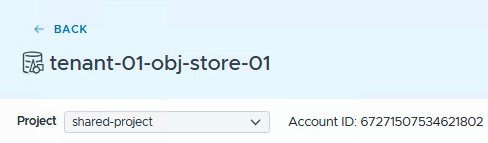
To allow users from a remote project to access a bucket in a local bucket, a bucket policy must be created to allow it. The first thing you will need to retrieve before building a bucket policy is the account id of the project. We captured this in the table earlier. You can get this from the VCFA UI, as it is shown next to the Project name under the Native Object Storage view.
The default-project id is 38925014951642977:

The shared-project id is 67271507534621802:
You can use the aws cli to check that there is no existing bucket policy in place, making sure you use the correct credentials to do the query.
$ aws s3api get-bucket-policy –bucket proj-admin-bucket-02-shared-proj \
–profile tenant01-shared-project
aws: [ERROR]: An error occurred (NoSuchBucketPolicy) when calling the GetBucketPolicy operation: The bucket policy does not exist
We now want to set a bucket policy that allows users from the default-project ( account id beginning 389 ) to access a bucket (proj-admin-bucket-02-shared-project)in the shared-project. We can do this via the API /CLI or via Object Storage UI in VCF Automation. We want users from the remote project to be able to access the bucket read-only, so we are only allowing actions to list the bucket, get objects from the bucket and get the tags on these objects. We are not letting the remote users write anything to the bucket. The bucket policy, in JSON format, will look something like this:
{
    "Version": "2012-10-17",
    "Statement": [{
        "Sid": "AllowListBucket",
        "Effect": "Allow",
        "Principal": {
            "AWS": "arn:aws:iam::38925014951642977:root"
        },
        "Action": "s3:ListBucket",
        "Resource": "arn:aws:s3:::proj-admin-bucket-02-shared-proj"
    }, {
        "Sid": "AllowGetObjects",
        "Effect": "Allow",
        "Principal": {
            "AWS": "38925014951642977"
        },
        "Action": ["s3:GetObject"],
        "Resource": "arn:aws:s3:::proj-admin-bucket-02-shared-proj/*"
    }, {
        "Sid": "AllowGetTags",
        "Effect": "Allow",
        "Principal": {
            "AWS": "arn:aws:iam::38925014951642977:root"
        },
        "Action": ["s3:GetObjectTagging"],
        "Resource": "arn:aws:s3:::proj-admin-bucket-02-shared-proj"
    }]
}
Most of it is probably easy to understand, but the Principal might need a bit more explaining. Let’s break down the ARN in more detail:
-
arn:aws:Amazon Resource Name (usually in the public AWS cloud). -
iam:The AWS service involved. In this case, Identity and Access Management. -
38925014951642977:The Account ID. (Note: Standard AWS account IDs are 12 digits long but ours are 17 digits). -
rootThis does not literally mean the root user. Instead, in a policy context, it acts as a placeholder for the entire account. It basically delegates permission management to the administrator of that target account. It means: “I trust this account. The administrator of that account can now use their own IAM policies to grant their specific IAM users / roles to my S3 bucket.”
To create this policy via the API, run the following aws cli commands, where –policy file:// points to the JSON file above:
$ aws s3api put-bucket-policy --bucket proj-admin-bucket-02-shared-proj \
--policy file://enable-cross-bucket-iam-from-acc-38925014951642977-tenant01.json \
--profile tenant01-shared-project
If no error is returned, the policy has successfully taken effect. If you want to do this via the VCFA UI, login to the Organization where the Object Store has been created. Go to Build & Deploy > Object Storage. Select the project where you wish to apply the bucket policy, e.g., shared-project. Click on the bucket to which the policy is to be applied. In this case, it is tenant-admin-bucket-02-shared-proj. Select Policy, and the Click Here to apply a bucket policy. Click JSON, and paste the bucket policy content created earlier.

Apply the bucket policy via the UI by clicking on Save. After saving, click Expand All to see the policy details. Note that this view will be available either way – if you applied the policy via the API or UI, it will appear here:

Now use the aws cli once more to see if it the bucket policy has taken effect.
$ aws s3api get-bucket-policy --bucket proj-admin-bucket-02-shared-proj \
--profile tenant01-shared-project
{
"Policy": "{\"Version\":\"2012-10-17\",\"Statement\":[{\"Sid\":\"AllowListBucket\",
\"Effect\":\"Allow\",\"Principal\":{\"AWS\":\"arn:aws:iam::38925014951642977:root\"},
\"Action\":\"s3:ListBucket\",\"Resource\":\"arn:aws:s3:::proj-admin-bucket-02-shared-proj\"},
{\"Sid\":\"AllowGetObjects\",\"Effect\":\"Allow\","Principal\":{\"AWS\":\"arn:aws:iam::38925014951642977:root\"},
\"Action\":[\"s3:GetObject\"],\"Resource\":\"arn:aws:s3:::proj-admin-bucket-02-shared-proj/*\"},
{\"Sid\":\"AllowGetObjectTags\",\"Effect\":\"Allow\",\"Principal\":{\"AWS\":\"arn:aws:iam::38925014951642977:root\"},
\"Action\":[\"s3:GetObjectTagging\"],\"Resource\":\"arn:aws:s3:::proj-admin-bucket-02-shared-proj/*\"}]}"
}
This looks good. Now see if the LDAP user tenant01, i.e., the project admin user from the default-project, can list the contents of the bucket that has been created on the same object storage but in a different project.
$ aws s3 ls s3://proj-admin-bucket-02-shared-proj --summarize \
--human-readable --recursive --profile tenant01-default-project
2026-09-14 14:42:21 26.4 KiB supervisor-service-contour-legacy-v1.33.1_vmware.2-25276585.yml

Total Objects: 1
Total Size: 26.4 KiB
Success! The user from the default-project can list the bucket contents of the shared-project bucket which resides in a different project, something this user could not do before the bucket policy was applied. Let’s now try to copy the contents of the bucket in the shared-project to a bucket in the default-project.
$ aws s3 cp s3://proj-admin-bucket-02-shared-proj s3://proj-admin-bucket-01-def-proj \
--recursive --profile tenant01-default-project
copy: s3://proj-admin-bucket-02-shared-proj/supervisor-service-contour-legacy-v1.33.1_vmware.2-25276585.yml to s3://proj-admin-bucket-01-def-proj/supervisor-service-contour-legacy-v1.33.1_vmware.2-25276585.yml
Let’s check if the file made it over to the default-project bucket:
$ aws s3 ls s3://proj-admin-bucket-01-def-proj --summarize --human-readable \
--recursive --profile tenant01-default-project
2026-09-14 09:47:53 132 Bytes credentials_admin_20260910_151358.csv
2026-09-14 09:47:53 132 Bytes credentials_admin_20260910_152130.csv
2026-09-16 09:06:38 26.4 KiB supervisor-service-contour-legacy-v1.33.1_vmware.2-25276585.yml

Total Objects: 3
Total Size: 26.7 KiB
Once again, success! If you have some issues, you can run some commands to check that access to the local bucket is working as expected. One useful command is checking if it is possible to upload a simple local file to the destination bucket from the jump-box using your locla project credentials. This will verify that the user has credentials to write to the local bucket.
$ aws s3 ls s3://proj-admin-bucket-01-def-proj --profile tenant01-default-project
2026-09-14 09:47:53 132 Bytes credentials_admin_20260910_151358.csv
2026-09-14 09:47:53 132 Bytes credentials_admin_20260910_152130.csv
2026-09-16 09:06:38 26.4 KiB supervisor-service-contour-legacy-v1.33.1_vmware.2-25276585.yml

Total Objects: 3
Total Size: 26.7 KiB


$ echo "test" > test.txt

$ aws s3 cp test.txt s3://proj-admin-bucket-01-def-proj/ --profile tenant01-default-project
upload: ./test.txt to s3://proj-admin-bucket-01-def-proj/test3.txt

$ aws s3 ls s3://proj-admin-bucket-01-def-proj --profile tenant01-default-project
2026-09-14 09:47:53 132 Bytes credentials_admin_20260910_151358.csv
2026-09-14 09:47:53 132 Bytes credentials_admin_20260910_152130.csv
2026-09-16 09:06:38 26.4 KiB supervisor-service-contour-legacy-v1.33.1_vmware.2-25276585.yml
2026-09-16 09:11:41 5 Bytes test.txt

Total Objects: 4
Total Size: 26.7 KiB
Summary
Although still a tech preview in VMware Cloud Foundation version 9.1.1, Native Object Store has many production-ready features, especially around multi-tenancy. Whilst Object Storage is enabled at the scope of a Region, meaning that it is available to all organizations in a given region, the object stores themselves are organisation specific. Within an organisation, projects share the same underlying object store, but the access controls are set at the project level. As we have seen, an LDAP user who has been added to two projects may be allowed or denied access to the object store on a per project basis. Project Administrators decide which users are allowed to create, delete and access buckets, and the actions they can carry out on a bucket through the access control settings. Cross-Project bucket access can be also configured by a Project Admin through bucket policies, as seen above, to allow or deny remote access to buckets. Lots of nice granular controls in Native Object Storage.

One Reply to “Bucket Policies in VCFA 9.1.1 for Native Object Storage”