Identity Providers and Access Controls in VCFA 9.1.1 for Native Object Storage
 In a previous post, I highlighted how to get started with Native Object Storage which is in tech preview in VMware Cloud Foundation (VCF) version 9.1.1. In that post, we saw the role of the Provider Admin and the Organization Admin in VCF Automation (VCFA). We saw that the Provider Admin could create object storage on behalf of the tenant users within an organization, but could not actually create or view the buckets on the object store, nor see the access controls or anything else associated with the object store for that matter. We saw that the Org Admin had to log in directly to the organization in order to be able to work with the Object Store. In this post, I want to look at the relationship between Object Storage and some other VCFA organization personas, such as the Project Admin and the Project Advanced User. We will add some users to VCFA using LDAP, give them a role in VCFA (organization users to begin with), and then give them roles in the project itself to see the different behaviours. The assumption is that Native Object Storage is already configured, so we will implement the following steps:
- As the Provider Admin, configure LDAP as an Identity Provider
- As an Provider Admin, add the ‘Provider’ configured LDAP to an Organization
- As an Org Admin, add LDAP user as an organization user
- As an Org Admin, assign user a Project Admin role
- As a Project Admin, observe Object Storage behaviour
- As an Org Admin, create a new organization role to include additional object store privileges
- As an Org Admin, change role of organization user (Project Admin)
- As a Project Admin, login to organization and observe change in Object Storage behaviour
- As an Org Admin, add a new LDAP user as organization user with additional object store privileges
- As an Org Admin, assign Project Advanced User role to new LDAP user
- As a Project Admin, assign Object Storage Access Controls to LDAP user
- As an Project Advanced User, login to organization and observe Object Storage behaviour
At the end of this post, we should have a pretty good idea about how Native Object Storage access controls work for the different VCFA personas.
Step 1: Configure LDAP/Active Directory on Provider
Begin by configuring LDAP as an Identity Provider for VCFA as the Provider Admin. You may get a ‘trust certificate’ popup similar to what I see here during testing. Once configured, it is worthwhile doing a quick test on some of the users to ensure you can query your LDAP Server / Active Directory successfully.

To do a user test, click on the Test icon, provide the password of the user used to configure LDAP in the first place, and then add the LDAP/AD user that you want to test. This will return a list of attribute and whether or not the are configured. If you are happy that LDAP is working, we can proceed to the Organization where Object Storage is configured. Below is an example of a Test output, displaying which user attributes are configured and which are not.

Step 2: Configure LDAP on Organization
Login to your Organization as the Provider Admin. Select the Administer tab, and then select Identity Providers. Next, select LDAP and then the Configure button, as shown below.
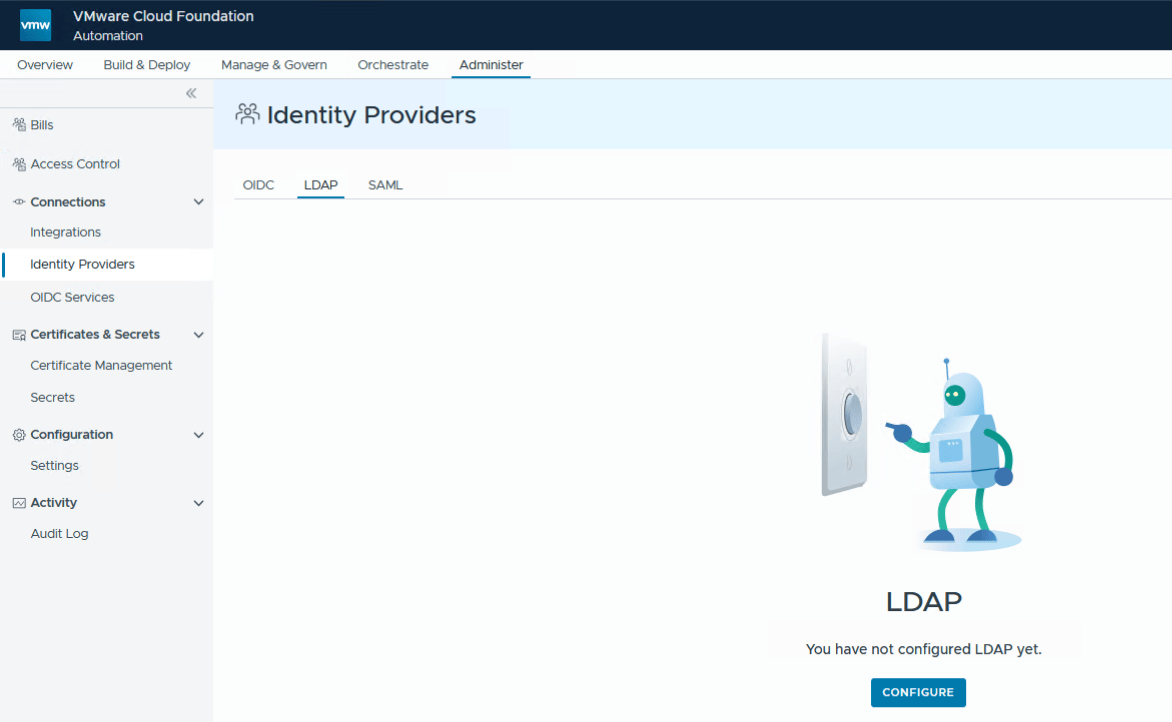
In the LDAP source selection list, choose VCF Automation system LDAP service, which is what was configured in step 1. Add a distinguished name for the Org. Save the settings.

Step 3: Import LDAP user as Organization User
Let’s import an LDAP user into our organization. You can do this as a Provider Admin, or you can log out and log in as the Org Admin. Return to the Administer section of the Organization but now select Access Control from the left hand menu list. At present there is only a single user, the tenant-03-admin. This is the first user that was added during the creation of the organization. Click on the Import Users button to add a new users from LDAP.
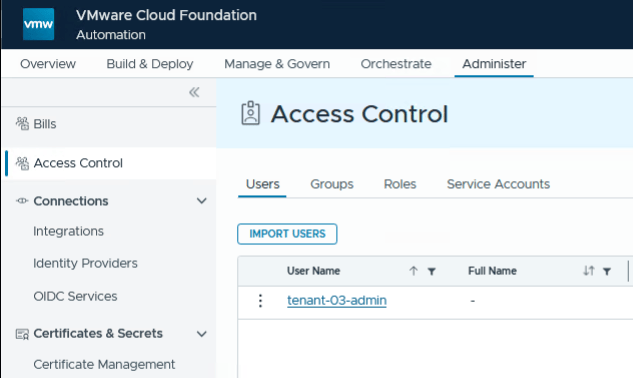
The Org Admin adds LDAP user ‘sadaf’. The Org Admin is also going to assign a role of “Organization User”. Click Import.

Step 4: Add LDAP user to Project as Project Admin
Now navigate to the Manage & Govern tab in the Organization. Select Projects, then click on the Project (e.g., default-project) that you wish to assign users to.
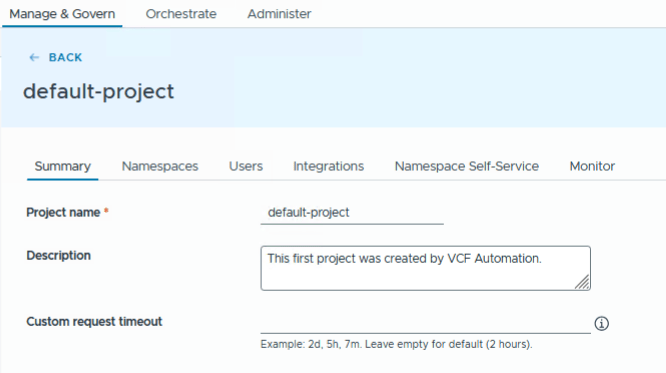
Click on Users, then Add Users. In the Users list, type in the LDAP User that was previously added to the organization, i.e., “sadaf”. Assign a Project Role. In this case, “sadaf” is assigned the role of Project Administrator. Click Add, and then make sure you click on the Save button located at the bottom of the window. I have missed this on a number of occasions, so be sure to do that step.

Check the users on the project and ensure that user ‘sadaf’ is listed as a Project Admin.

Looks good. Let’s proceed to trying to manage Native Object Storage as a Project Admin.
Step 5: Check Project Admin access to Native Object Storage
Log out of the organization as the provider admin / organization admin, and log back into this organization as ‘sadaf’, the Project Admin. From the Build & Deploy tab, select Object Storage. You should now observe something identical to this “Unable to Load Object Stores” message:
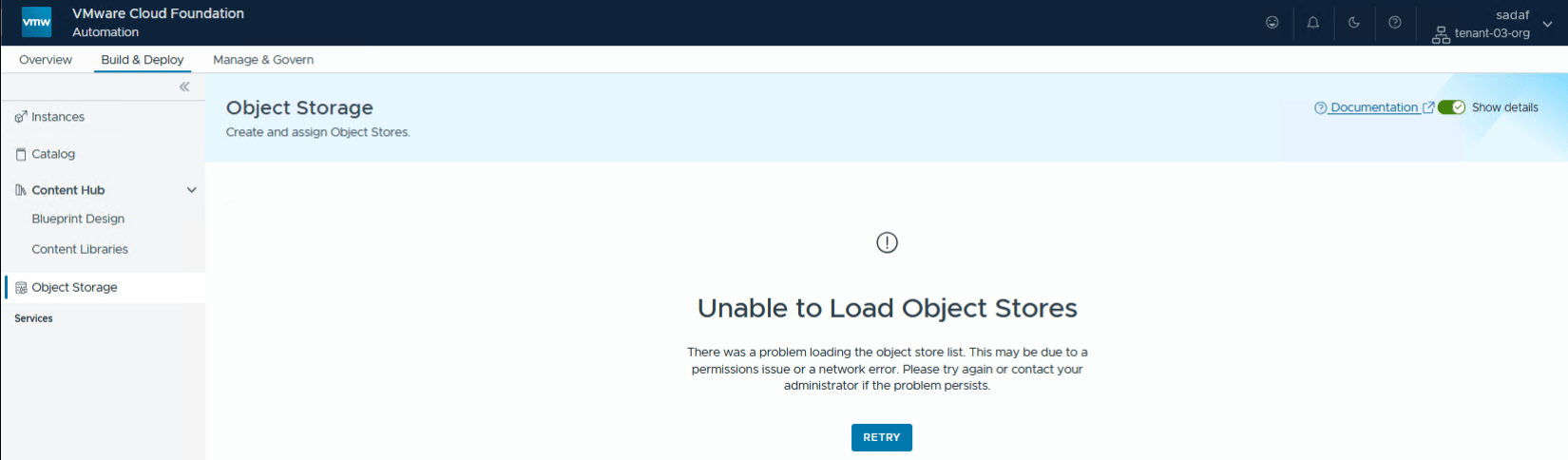
The reason for this is because, in tech preview in version 9.1.1, the “Organization User” role does not have sufficient privileges to either View or Manage object storage. We are going to have to create a new organization role with additional privileges to access the object storage. Let’s do that next.
Step 6: Create New Org Role with Object Storage Privileges
Log out of the tenant organization as the Project Admin and log back in as the Org Admin. Now, let’s take a look at the privileges associated with the Organization User. In the Organization, navigate to the Administer tab (which is only visible to Org Admins), and select Access Control once more from the left hand menu. Select Roles, then click on the Organization User to see the privileges/rights associated with that role. As you can see below there are no Object Store or vSAN Data Services privileges selected. Those are the ones needed for Object Storage.

We can now go ahead and clone the organization user role to a new role where we can edit the privileges. In the role listing, click on the 3 dots in front of the Organization User roles and select Clone.
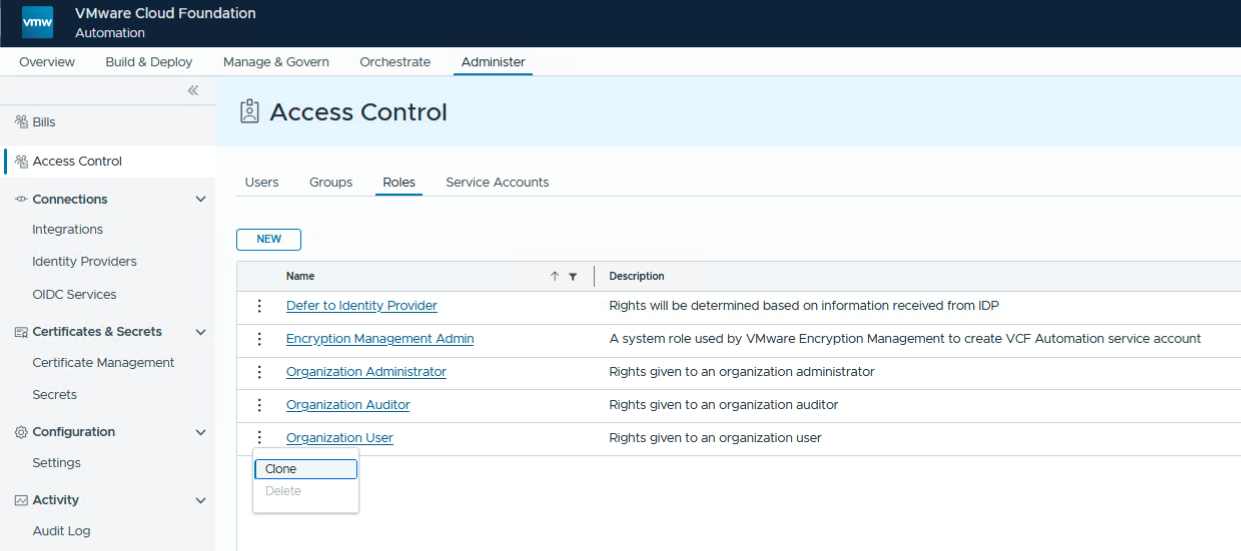
Edit the new role, giving it a recognisable name, but more importantly, ensuring that the necessary Object Store and vSAN Data Service privileges are enabled. Note that in this case, I am selecting both management and view permissions. You may not want to do this, and instead only select View permissions for your Project Admins and Users. If you grant this role both sets of permissions, then anyone with this role will also be able to delete Object Stores in the Organisation, something you may not want to provide. Once the permsisions are selected, save this new Role.

Step 7: Assign new role to LDAP User
Staying in Access Control, select the Users view. Click the three dots before user ‘sadaf’ and select Edit. In the Assigned Roles section, remove the Organization User Role and add the new role with the object store privileges that you just cloned, in this case “Organization User with Object Store. Save the User settings.

Now log back into the Organization as the Project Admin ‘sadaf’ and see if the behaviour has changed with respect to Object Storage.
Step 8: Observe change in Object Storage behaviour
Now when Project Admin ‘sadaf’ logs into the organisation, navigates to Build & Deploy, and then select Object Storage from the left hand menu, she is immediately offered an access key and secret. This is much better than previous behaviour. Keep in mind that this is because ‘sadaf’ has already been added as a Project Admin to the default-project by the Org Admin, but now also has permissions to access to the object store. If multiple projects existed, and a different project other than default-project was selected, ‘sadaf’ would not have access to the object storage from that project unless the Org Admin adds ‘sadaf’ as a user to the project. ‘sadaf’ has only been given access to the default-project and no other projects. Access to the object store is scoped at the project level in VCF Automation.
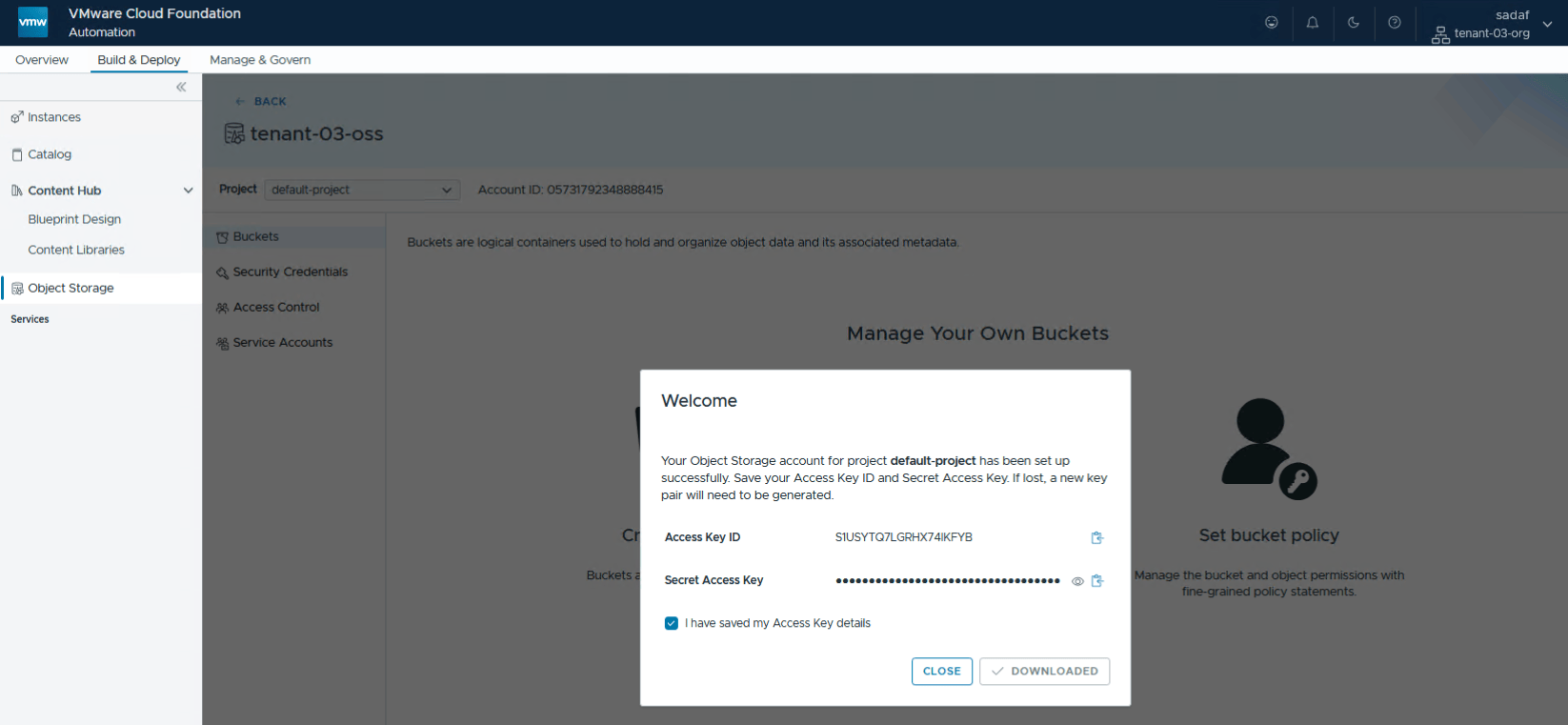
After saving the key and secret somewhere safe, and closing the welcome popup, the Project Admin can proceed with other activities, such as bucket creation and assigning additional project users access to the object storage.

A Project Admin has access to Security Credentials, Access Control and Service Accounts in this Project. As a Project Admin, this user ‘sadaf’ can now control access to the Object Storage on behalf of other Project Users. Let’s look at that next.
Step 9: Import a new LDAP User as Project Advanced User
We have already seen how to do this. This will have to be done as the Org Admin (or Provider Admin). It cannot be done by a Project Admin, as the Project Admin does not have access to the Administer tab (as you can see in the previous screenshot in step 8). This time, when importing the user ‘paudie’ into the organization, ensure that the role is the org user + object storage privileges that we created earlier.

Step 10: Add new LDAP User as Project Advanced User
Next, add user “paudie” to the Project (default-project) as a Project Advanced User. This can be done by the Organization admin or as the Project admin.

Let’s login to the organisation and see if our newly added Project Advanced User “paudie” has access to the object store. The answer is no. They currently only have access to the Project, but not to Object Storage within the Project. Note that you are redirected to the Project Admin to resolve this access issue.

Step 11: Assign Object Storage Access Controls
Log out as Project Advanced User ‘paudie’, and login as Project Admin ‘sadaf’. Once logged in as a Project Admin, check the Access Controls associated with the Object Store. All policies and their users are displayed. As we can see, only the Org Admin (the first Org user created with the organisation) and user ”sadaf’ (Project Admin) have policies designed to give access to the object store in this project. Project Advanced User ‘paudie’ does not have any access to the object store.

Project Admin ‘sadaf’ can now go ahead and create some access rules for Project Advanced User ‘paudie’. We are not going to deal with granular rules here, but of course there are a range of actions that can be controlled, where we can grant or deny access to particular actions and to particular buckets. To keep things, simple, we are going to give the user ‘paudie’ access to all actions on all buckets on this object store. Give the policy a name, select the user to which it applies, and then setup your statement to allow or deny actions on buckets. Then click Create. Below is an example of an access control policy where ‘paudie’ is given access to all actions on all buckets on the object store in this project.

The policy will now be visible and can be viewed under Access Control. Note that this is only on the default-project only. This access control policy does not apply to other projects consuming the same object store.

Side note: In the Resources section, we placed a wildcard “*” in that field, giving user ‘paudie’ access to all buckets. If you simply wanted to give them access to a single bucket and its contents, replace the “*” with two ARN entries, e.g., arn:aws:s3:::your-bucket-name and arn:aws:s3:::your-bucket-name/*. This allows the user to have access to both the bucket and its contents. This is normally required for most use cases.
Step 12: Observe change in Object Storage behaviour
Let’s log in to the organization once again as user ‘paudie’ and see if access to the Object Storage has changed now that this user has been granted access control via a new policy.

Success. Project Advanced User ‘paudie’ can now access the object store, has access to buckets and can manage his own Security Credentials, i.e., create additional credentials. However, since this user is not a Project Admin, ‘paudie’ does not have the ability to manage or change the Access Controls, nor does he have access to Service Accounts. These controls are only available to the Project Admin. Thus, user ‘paudie’ is not able to onboard any more project users to enable them to access Object Storage. This has to be done by ‘sadaf’ who has Project Admin privileges (or by the Organization admin).
Summary
That completes the post. I hope it has gone some way to explain how VCF Automation roles and Project roles are used to implement Access Controls on Native Object Storage in the VCF 9.1.1 Technical Preview. This table should provide a useful recap. Note that many of the Org Admin tasks listed below could also be done by the Provider Admin:
| Role | Actions |
| Provider Admin |
|
| Org Admin |
|
| Project Admin |
|
| Project Advanced User |
|

2 Replies to “Identity Providers and Access Controls in VCFA 9.1.1 for Native Object Storage”