Data Services Manager version 9.1.1 Network Security
 One of the interesting new features of VMware Data Services Manager when it is integrated with VCF automation is the Network Security feature. In a nutshell, what this feature does is implement both distributed firewall rules and gateway firewall rules for each DSM database deployed via VCF Automation. Let’s take a closer look.
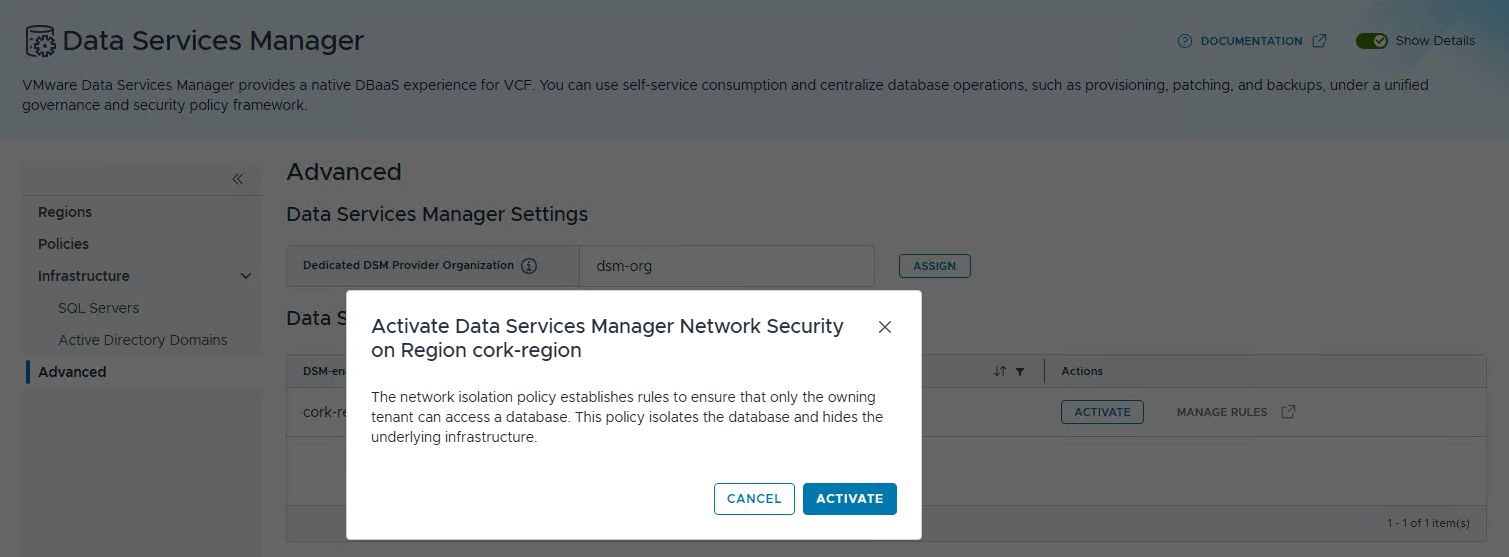
By default, Net work Security is disabled. The VCFA Provider Admin will need to activate it. Navigate to VCF Services > Data Services. In the Data Services Manager menu, select Advanced. Here you will find the button to activate Network Security.

When the Activate button is clicked, a pop-up will appear explaining what Network Security is setting out to do. It is basically going to implement a set of rules so that only the tenant that requested the database is able to access “from that tenant”. It cannot be access from any other tenant, or from an external ip address outside of VCF. It will do this by implementing a set of gateway and distributed firewall rules on the dedicated DSM organization where the database instance is instantiated.
Now, do note that by default, Transit Gateway (TGW) Firewalls are disabled. Therefore either the DSM Org Admin or the Provider Admin will need to open the DSM Org and enable the Transit Gateway Firewall. A shortcut to this point is to simply click on the “Manage Rules” link found in the Advanced View of the Data Services Manager Network Security section show above. If you fail to enable the TGW firewall step, the gateway rules will not be implemented and will be left in an “In Progress” state, as shown here:

To turn on the Transit Gateway Firewall, select the Settings tab, select the region and turn the firewall on.

Once the Gateway Firewall is enabled, the state should change to Success and any existing DSM provisioned databases should have their ruleset added to the firewalls on the dedicated DSM Org. Below are the transit gateway rules which only allow the configured IP addresses (Supervisor Control Plane VMs and DSM Provider) to communicate to the K8s API server of the database, and only allow the SNAT’ed IP address of the tenant ORG to communicate to the database port.

So far, so good. Now let’s assume that someone outside of that tenant’s org wishes to access the database. Maybe it is an app running somewhere else on the infrastructure. In that case, all you have to do is to add the External IP Address to the database configuration, as shown here:

And once the database reconciles with the new external client ip address, a new Transit Gateway Rule will be in place to allow the connection to succeed. As shown below, this is added to the list of IP addresses that can access the Postgres database but not the list of IP addresses that are allowed to access the database’s K8s API server.

And to verify that we can now connect to the database from that IP address, run the following:
$ ip -f inet address show ens33
2: ens33: <BROADCAST,MULTICAST,UP,LOWER_UP> mtu 1500 qdisc mq state UP group default qlen 1000
altname enp2s1
inet 10.13.10.200/24 brd 10.13.10.255 scope global ens33
valid_lft forever preferred_lft forever

$ psql postgresql://pgadmin:43ux4ZwihNYooae00gUn5404ygLr0R@192.168.21.14:5432/ten2-pgdb
psql (16.15 (Ubuntu 16.15-0ubuntu0.24.04.1), server 16.14 (VMware Postgres 16.14.0))
SSL connection (protocol: TLSv1.3, cipher: TLS_AES_256_GCM_SHA384, compression: off)
Type "help" for help.

ten2-pgdb=# \c
psql (16.15 (Ubuntu 16.15-0ubuntu0.24.04.1), server 16.14 (VMware Postgres 16.14.0))
SSL connection (protocol: TLSv1.3, cipher: TLS_AES_256_GCM_SHA384, compression: off)
You are now connected to database "ten2-pgdb" as user "pgadmin".
ten2-pgdb=#
Everything looks good. The rules are allowing me to connect to the database from an external IP address.
A note about remote replication. If remote replication is configured on a database and the read replica and the primary instances are in different regions, you must manually authorise the network for connectivity. Edit the Primary database “Extra Clients” field like we did earlier and add the SNAT IP of the organization VPC where the read replica instance is created. Now perform the same action on the read replica database, adding the SNAT IP of the organization VPC where the primary instance was created as an “Extra Client”. This will enable data synchronisation and ready it for both read scale out and disaster recovery scenarios.
