Using SQL Server Management Pack in VCF Operations with DSM provisioned SQL Server
 Many of my recent posts have focused on the new Microsoft SQL Server data service in the 9.1 version of VMware Data Services Manager (DSM). On the back of those posts, I had a query about whether it was possible to use the Microsoft SQL Server Management Pack for VCF Operations that is available on the VCF Solutions Catalog with DSM provisioned SQL Servers. The short answer is yes, you can install this management pack in your VCF Operations and create a SQL Server account for it. The Management Pack for Microsoft SQL Server now connects to your Microsoft SQL Server instance (via JDBC using the jTDS driver) and executes SQL queries. SQL queries are executed in order to import health, performance, availability, capacity, and relationships data for your SQL server resources into VCF Operations. This allows your DBAs or IT team to gain critical actionable insight into database performance, query designs, and queries with access to 250+ collected metrics, reports, dashboards, notifications, and alerts in the VCF Operations console. This will allow your DBAs to clearly understand how workloads are performing, where issues may occur, and their source. It will help them to write better queries and optimize query designs for faster information retrieval and reporting. Let’s see how to install it.
Download the SQL Server Management Pack
In VCF Operations, select Administration > Integrations > Solutions Catalog. The database management packs are not available by default. You will need to download them from the VCF Solutions Catalog. You can navigate to the VCF Solutions Catalog directly from VCF operations, or you can get to it from https://vcf.broadcom.com/vsc/services. Browse the Management Packs. Here you will find the Management Pack for SQL Server. You will need to sign in to download it. You will also have to create a “Signing Key” and then provide this when you install the Management Pack into VCF Operations. The latest version of the SQL Server Management Pack at the time of writing is 9.0.0.0100.

Install SQL Server Management Pack
In VCF Operations, select Operate / Integrations > Solutions Catalog. You can see the downloaded management packs from there, as shown below. Once the management pack is downloaded into the catalog, install it. You will be prompted for the “Signing Key” created earlier as part of the install.

Create SQL Server Account
Microsoft SQL Server now appears as an available account type after the management pack has been successfully installed in your VCF Operations.
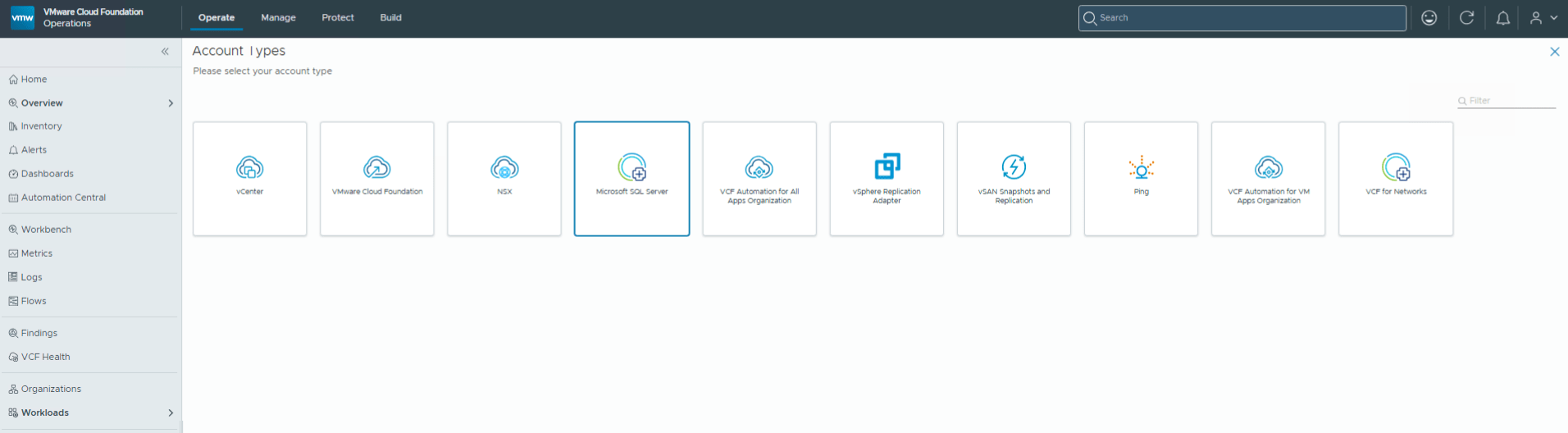
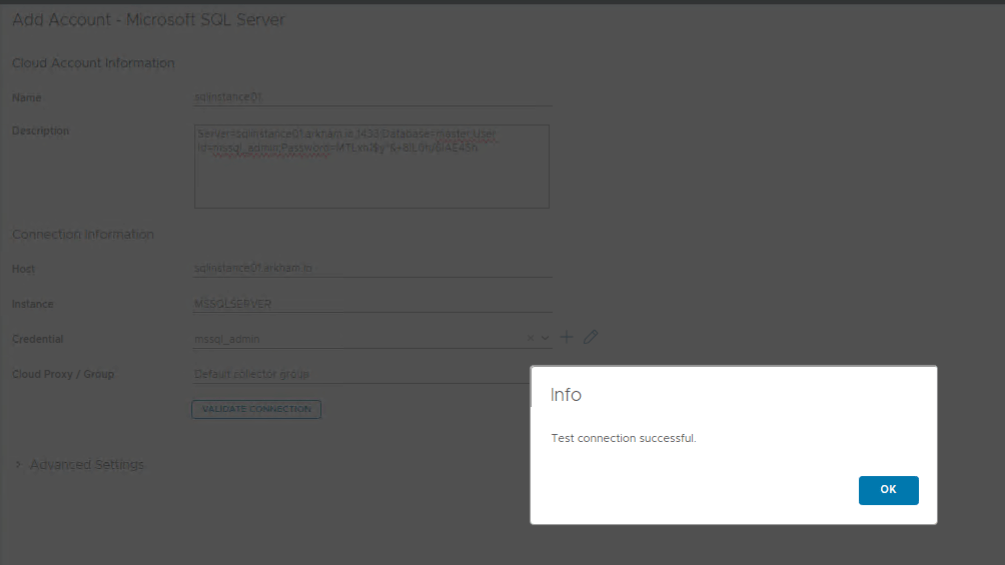
Add a SQL Server account. Provide the necessary information to connect to the SQL Server instance in the account. I am using the mssql-admin credentials that DSM created for the instance.

Validate the Connection as a test:
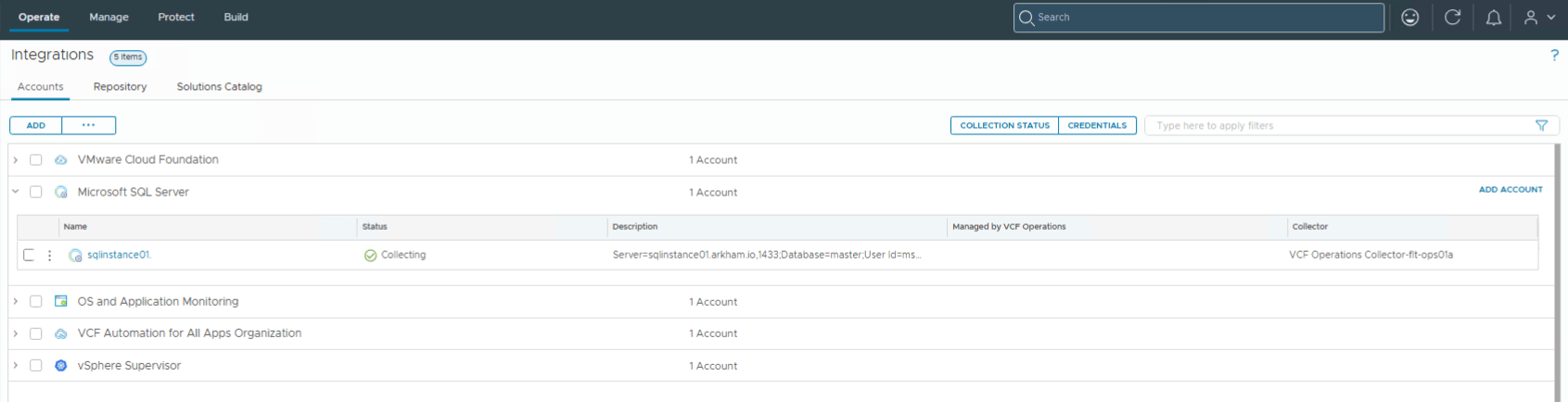
Soon after adding the account, you should see data getting collected from the SQL Server.
Examine the SQL Server Dashboards
The SQL Server Management Pack includes some very useful dashboards ‘out of the box’. Navigate to dashboards in VCF Operations where you should see MS SQL Server metrics now displayed. This first one details the Query metrics.

You can also drill down into database specific resource consumption:

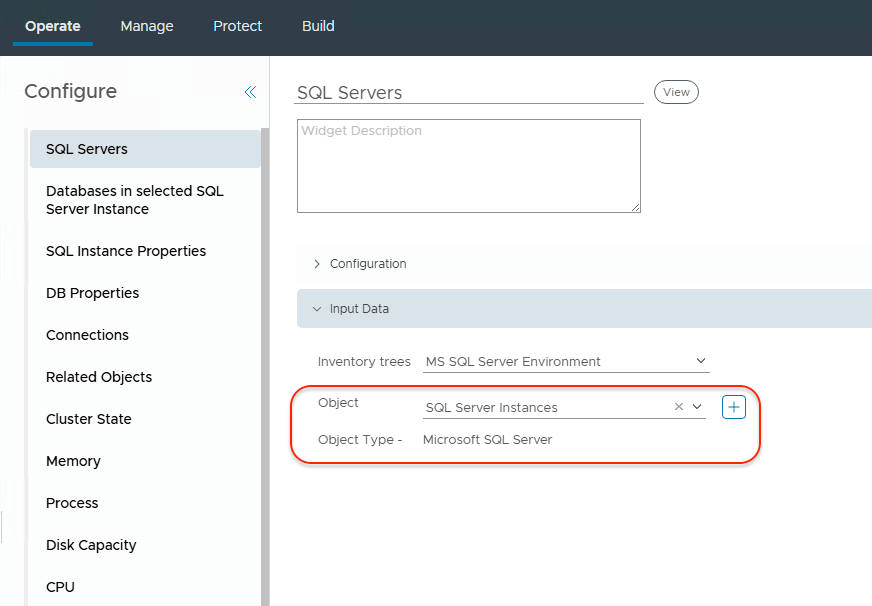
Note that on the initial install of the management pack, and the initial view of the dashboards, the Microsoft SQL Server dashboard was empty in my environment. It did not show any SQL Server instances. I therefore edited the dashboard to see what the inputs were. The inventory tree was correctly set to MS SQL Server Environment but there were no Objects. After adding the SQL Server instances to the Input data Objects as shown here, and saving the changes to the dashboard, everything started to work (this step may not be necessary in your environments, as the second time I tested the management pack installation and account creation, the Objects auto-filled correctly):
Now the SQL Server instances are visible in the dashboard and can be selected to get more details on the deployment. To get this view, single click on the instance to open the interaction menu, and then select the internal view. The other item takes you back to the Query dashboard seen earlier.

This is a really nice dashboard to have because once you have selected the instance and database, you can begin to examine metrics like Longest Wait Types, which are essentially the internal indicators that record why a query thread has paused execution and what specific resource it is waiting for.
One final note – there does appear to be some discrepancy in building relationships between the VMs and the SQL Server database nodes. This can be seen in the Related Objects window of the final screenshot above. If VCF Operations is unable to resolve the SQL Server node name, then the relationships are not built in this version of the management pack 9.0.0.0100. In the adapter logs, located on the VCF Ops 9.1 appliance in /storage/log/vcops/log/adapters/MicrosoftSQLServerAdapter, the logs will show the following:
Failed to add VirtualMachine resource with hostname "msql-vcfa-instance1-2" as parent of SqlAvailabilityGroup
resource with name "DSMAG": Failed to create relationship with VM names ("msql-vcfa-instance1-2")
The reason is that the SQL Server nodename msql-vcfa-instance-2 may not be the same as the hostname of the virtual machine/OS. In my case, the hostname of the VM was msql-vcfa-instance1-398432-4z2fl-czs9p as shown in the vCenter inventory. So this is why it cannot resolve, and why it cannot create the relationships. Basically, VCF Operations needs to be able to resolve the nodename of the SQL Server. A work-around is to simply add an alias in DNS for the SQL server nodename alongside the VM hostname, (i.e., have entries for both msql-vcfa-instance-2 and msql-vcfa-instance1-398432-4z2fl-czs9p in DNS pointing to the same IP address). This should allow the relationship between VM/OS hostname (plus other vSphere infra) and the SQL Server nodename to work, and the Relationship Objects view should reveal far more detail:

For further information on the SQL Server Management Pack, check out some of the official documentation here and here.
