Getting started with vSAN Object Storage in VMware Cloud Foundation version 9.1.2
 I am delighted to announce that vSAN Object Storage in now generally available (GA) in VMware Cloud Foundation (VCF) version 9.1.2. Readers may have noticed a number of blog posts from me during the VCF 9.1.1 tech preview period when a pre-GA version of object storage was available. Before I go any further, a big thank you to all the customers who tested out the tech preview version and provided us with invaluable feedback. We are very grateful for your efforts. Let’s now see how to get started with vSAN Object Storage in VCF version 9.1.2. Please familiarise yourself with both the Release Notes and the Admin Guide for vSAN Object Storage. I will begin with an overview of my environment which I am purposefully keeping very simple to begin with.
Environment Overview
I have a full VCF stack deployment. My VCF 9.1.2 management domain in running on a 4 node vSAN ESA cluster. My single VCF 9.1.2 workload domain is running on a 3 node vSAN ESA cluster. Each domain has its own NSX Manager. My workload domain has an NSX Edge in Active/Standby Mode deployed. There is no AVI in this configuration so I am using the NSX Load Balancer functionality for any front-end IP addresses that I required. My Supervisor is deployed on my workload domain, so it is deployed on a single vSphere/vSAN ESA cluster, implying that there is only a single zone, the management zone. The Supervisor workload network is configured to use VPCs. VCF Operations and VCF Automation are deployed on the management cluster so I can deploy, manage and monitor my workloads.
I am a firm believer that a picture is worth a thousand words, so I will add plenty of screenshots to this getting started blog post so you can see what is happening along the way.
Supervisor status
Let’s take a quick look at the Supervisor. We can see that the config and host config status are both running. However, it only has 3 namespaces, which means that not all the services are yet deployed. Another thing to note in VCF 9.1.2 is that Supervisor Management has been renamed to Kubernetes Infrastructure.

I normally wait until all the services are ready. The last one to start on my setup is usually the VKS cluster management service. Once all the services are successfully configured, we can proceed.

I previously mentioned that my Supervisor is running on a single vSphere/vSAN ESA cluster, and thus on a single zone. This is tagged as the “management” zone by the Supervisor. This can be checked and verified by navigating to the Supervisor and selecting the Zones tab, as show here.

VCF Automation Setup
Let’s now switch context from vSphere to VCF Automation (VCFA). I have gone through the steps of creating a Region. The Region discovers the Supervisor, and thus the existing management zone. I have also created an external IP block which will be used for my Load Balancer IP addresses, and I have also configured a Centralised Gateway attached to my NSX Tier-0 so that my applications can communicate externally. This is important for Object Storage as we want to be able to access the Object Storage Extension (OSE) through both the API and the in-built UI. Here is my current VCFA setup. I am logged in as the Provider Admin on the System or Provider Org. I will do a tenant organization creation shortly but for now, no tenant orgs are configured.

Deploy vSAN Object Storage Service
Navigate to the Service Management section on the left-hand side. Initially, Object Storage is not installed. A word of caution – this service can only be installed on standalone single-zone Supervisors. If you have a multi-zone (highly available) Supervisor with CP VMs deployed on different zones, this service cannot be installed on such a configuration.

Click on the install button to begin the process. First step, accept the certificates associated with the installation of vSAN Object Storage.

After accepting the certificate, you now need to select the scope for the Object Store deployment. You do this by selecting which Regions you wish to deploy Object Storage to. Note that the Object Storage service will be deployed to every Supervisor that is discovered in the Region or Regions that you select. There is no way to select Supervisors within a Region in this release; the Services is deployed to ALL. With my ‘keeping it simple’ deployment, I only have a single Region with a single Supervisor so that is what I select:

You can review the Service Properties in the next screen, but there should be no need currently to change this.

Review the configuration – did you select the correct Region? If so, click Submit. The resources view shown below provides a list of all of the components that need to be rolled out across both the Supervisor and the VCF Automation backend.

You can monitor the status of the deployment from the VCFA UI. Since everything will be eventually consistent, you may see some initial errors reported. But quite quickly things will settle down, and mostly you will be waiting for images to be pulled from the depot.

What is happening under the covers?
There are two places to monitor the deployment of the vSAN object storage service. The first is on VCFA and the second is on the Supervisor. In VCFA, a number of object related to overlays, permissions and access are built in the ‘prelude’ namespace. A new namespace called vsan-svc is also created and this holds the vSAN backend component. This is held in a pod called vsan-service-vmsp-backend. This is a useful place to monitor the deployment of vSAN Object Storage if you being to suspect some issues, or if the vmsp component fails in the VCFA UI status seen previously. Some snippets showing this namespace and the backend service startup logs are shown below for reference.
root@flt-vcfa-sr01-mdcl5 [ ~ ]# k get ns -w
NAME              STATUS   AGE
default           Active   12h
kube-node-lease   Active   12h
kube-public       Active   12h
kube-system       Active   12h
prelude           Active   12h
vmsp-platform     Active   12h
vmsp-policies     Active   12h
vsan-svc          Active   0s
vsan-svc          Active   6s

root@flt-vcfa-sr01-mdcl5 [ ~ ]# k get pods -n vsan-svc -w
NAME                                         READY   STATUS    RESTARTS   AGE
vsan-service-vmsp-backend-5f484f56f7-nxmwv   0/1     Pending   0          0s
vsan-service-vmsp-backend-5f484f56f7-nxmwv   0/1     Pending   0          0s
vsan-service-vmsp-backend-5f484f56f7-nxmwv   0/1     ContainerCreating   0          0s
vsan-service-vmsp-backend-5f484f56f7-nxmwv   1/1     Running             0          5s

root@flt-vcfa-sr01-mdcl5 [ ~ ]# k log vsan-service-vmsp-backend-5f484f56f7-nxmwv  -n vsan-svc  -f
I1125 10:47:45.622599       1 main.go:17] "Start vSAN EAS Server" version="9.1.2.0.133796"
I1125 10:47:46.225854       1 handler.go:304] Adding GroupVersion vsan.vmware.com v1alpha1 to ResourceManager
I1125 10:47:46.225979       1 app.go:122] "Starting service" port=8443
I1125 10:47:46.305058       1 secure_serving.go:214] Serving securely on [::]:8443
I1125 10:47:46.305216       1 dynamic_cafile_content.go:161] "Starting controller" name="request-header::/run/tls/ca.crt"
I1125 10:47:46.305361       1 dynamic_serving_content.go:135] "Starting controller" name="serving-cert::/run/tls/tls.crt::/run/tls/tls.key"
I1125 10:47:46.305490       1 tlsconfig.go:243] "Starting DynamicServingCertificateController"
I1125 10:47:46.310310       1 app.go:166] "Wait for getting necessary vcfa config..." cfg="&{PodNamespace:vsan-svc VcfaFqdn:https://flt-auto01.rainpole.io VcfaThumbprint:*** Version: DevSetting:{UseCci:true CheckLicense:false OverrideHostCpuMhz:0 EnableAutoReplicaSizing:<nil> SizingBaselineRgwMilliCPU:0 SizingBaselineRgwMemMiB:0 SizingBaselineEnvoyMilliCPU:0 SizingBaselineEnvoyMemMiB:0 SizingRotatorMilliCPU:0 SizingRotatorMemMiB:0 SizingFixedPodCount:0 SizingPodOverheadMiB:0 SizingThresholdPercent:0 SizingPodVMStorageMiB:0 SizingTelegrafBaseMiB:0 SizingTelegrafPerReplicaMiB:0 SizingTelegrafMinMiB:0 SizingBaselineClass:} MendelFlagsMap:map[]}"
I1125 10:47:46.314792       1 app.go:326] "Extracted VCFA version from ConfigMap" version="9.1.2"
I1125 10:47:46.314868       1 app.go:181] "VcfaConfig is ready" cfg="&{PodNamespace:vsan-svc VcfaFqdn:https://flt-auto01.rainpole.io VcfaThumbprint:*** Version:9.1.2 DevSetting:{UseCci:true CheckLicense:false OverrideHostCpuMhz:0 EnableAutoReplicaSizing:<nil> SizingBaselineRgwMilliCPU:0 SizingBaselineRgwMemMiB:0 SizingBaselineEnvoyMilliCPU:0 SizingBaselineEnvoyMemMiB:0 SizingRotatorMilliCPU:0 SizingRotatorMemMiB:0 SizingFixedPodCount:0 SizingPodOverheadMiB:0 SizingThresholdPercent:0 SizingPodVMStorageMiB:0 SizingTelegrafBaseMiB:0 SizingTelegrafPerReplicaMiB:0 SizingTelegrafMinMiB:0 SizingBaselineClass:} MendelFlagsMap:map[]}"
I1125 10:47:46.314986       1 vcfa_watch.go:19] "Watch VCFA resource" resource="configmaps" namespace="prelude" options={"fieldSelector":"metadata.name=native-object-store-dev-config"}
I1125 10:47:46.315148       1 vcfa_watch.go:19] "Watch VCFA resource" resource="secrets" namespace="prelude" options={"labelSelector":"services.vcfa.broadcom.com/name=serviceaccountsecret.native-object-store-vcfa-service-account"}
I1125 10:47:46.315211       1 vcfa_watch.go:19] "Watch VCFA resource" resource="secrets" namespace="prelude" options={"labelSelector":"services.vcfa.broadcom.com/name=native-object-store-api-token"}
I1125 10:47:46.316064       1 provider.go:96] "Wait for ObjectStore dependent resources being ready..."
As mentioned, another place to look is on the Supervisor itself. The Supervisor runs the controller / operator which is listening for requests to build object store instances. This also has its own Supervisor namespace, called svc-objectstore, and launches a single controller pod, native-object-store-operator-mgr, with 4 containers.
root@4232d8c1bf4f2fb99c8416c0b7ea7af2 [ ~ ]# k get ns -w
NAME                                        STATUS   AGE
default                                     Active   37m
kube-node-lease                             Active   37m
.
.<--snip
.
vmware-system-workload-cli                  Active   31m
vmware-system-zoneop                        Active   34m
svc-objectstore-fy47p                       Active   0s
svc-objectstore-fy47p                       Active   0s
svc-objectstore-fy47p                       Active   3s
svc-objectstore-fy47p                       Active   3s
svc-objectstore-fy47p                       Active   3s
svc-objectstore-fy47p                       Active   5s
svc-objectstore-fy47p                       Active   8s
svc-objectstore-fy47p                       Active   9s

root@4232d8c1bf4f2fb99c8416c0b7ea7af2 [ ~ ]# k get pods -n svc-objectstore-fy47p -w
NAME                                                READY   STATUS    RESTARTS   AGE
native-object-store-operator-mgr-65b9969c76-dhff9   4/4     Running   0          55s
If any of the containers are erroring, it should be also be possible to examine their logs in much the same way as we examined the vSAN backend service pods logs. But assuming everything is working correctly, and the service deploys successfully, a new supervisor service – the vSAN Object Storage service – should now be visible:

And if we use the vSphere client to go to the new namespace where the operator is created, it should also be possible to check on the state of the operator:

However, the final component that comes online is the VSP component, so continue to monitor this from the VCFA UI, as shown here. There are a few tasks which this needs to complete, but it should finish within 5 minutes of the other tasks (in my observations).

And pretty soon, everything should show as installed:

The vSAN Object Storage service is installed and healthy. We can build a tenant organization, and begin building and consuming vSAN object storage.
Create Organization to consume Object Storage
Before we build our organization, there is one consideration to keep in mind. The Region Quota that is associated with organizations needs to include a CPU and Memory reservation for object storage. The reservation values can be found in the Resource and Capacity planning section of the Admin Guide. I will show how to do this in this blog post, but please validate the numbers with the official docs as they change depending on the size of your vSphere/vSAN ESA cluster / zone.
One other factor to note is that a special vSAN Object Storage policy / storage class tag needs to be associated with the vSAN ESA datastore if it is to be used for Object Store instances. With the Supervisor “management” zone, this storage class tag is automatically associated with the vSAN ESA datastore. For other zones that you might want to use for vSAN Object Store instance deployments, this tag will not be present and you will need to add it manually. This is the tag which can be seen as part of my Region, and was automatically added due to the “keeping it simple” nature of my deployment:

I will revisit this in a future deployment where I have multiple zones available, and highlight how to handle this situation in more details. For now, let’s proceed with the tenant organization creation. First, give the org a name and an optional description.

Next, setup an Region Quota. This is where a subset of the region’s resources are allocated to an organization It is also where we select the zones to allocate to an org, choose the VM classes and the Storage Classes (including our special object storage class). If we select a portion of the capacity instead of the entire capacity, we could also set the reservation values that we wish, but we can also change this afterwards. Since I only have a single ‘mgmt’ zone I will share entire capacity of the Region with this tenant org.

Configure the network for the organization. I need the applications deployed in this organization to be reachable externally, so I am going to connect it to my centralised gateway via my NSX Tier-0. This step automatically builds all of the other networking components (VPC, TWG, SNAT, etc) to achieve this.

Finally, add a first user for the organization. My first user is the organization admin. This is important to set for Obejct Storage as the Provider Admin and the Organization Admin have different permissions and rights on object store instances. More on these nuances will come in a later post.
 Add the User and Finish the creation of the organization. Wait for it to become Ready.

Now, the step that we have not yet done is to set a Reservation on the resources that have been allocated to this Org. As mentioned, you could have done this during the creation of the Org if you chose the “Share a portion” option of the Region quota. Since we did not do that, we should go back and edit the Region Quota to add the Reservation:

Click on the >> to expand the Region Quota, then navigate down to the Capacity view. Here you can edit the reservation.

Now select the zone (again, keeping it simple, I have only one – “mgmt” zone) and then from there set your CPU and Memory Reservations. Remember to refer back to the vSAN Object Storage Admin Guide to get the correct figures for your own environment.

Save the changes to the Region Quota for this Org. You can now launch the Organisation portal and see the Object Storage menu option.
Object Storage as a Service
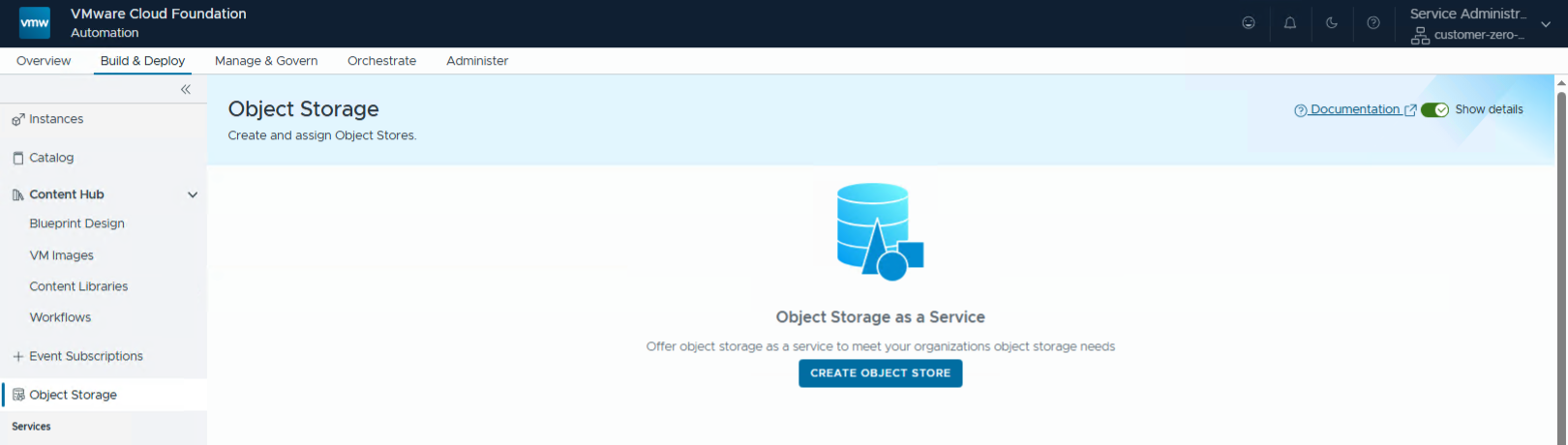
If everything has gone to plan so far, you should now be in a position to select the Build & Deploy tab in the Organization portal, and from there select Object Storage from the left-hand menu. This should display the option to create an object store. At this point, the installation would vSAN Object Storage on VCF 9.1.2 appears to be successful.

Summary
Object Storage is a great additional to vSAN ESA, now allowing our customers to do block, file and object from the same storage platform. The other really nice feature is that it comes with no additional licensing costs. If you already have vSAN ESA in your VCF environment, then you automatically get entitlement to object storage. My advice to those of your trying it out for the first time is to keep the environment as simple as possible until you get a good feel for the architecture – single vSAN ESA cluster, single zone, single Supervisor deployment will make the deployment as seamless as possible as I have hopefully shown above. This will give you the best initial experience before you expand out into other, more complex, topologies.